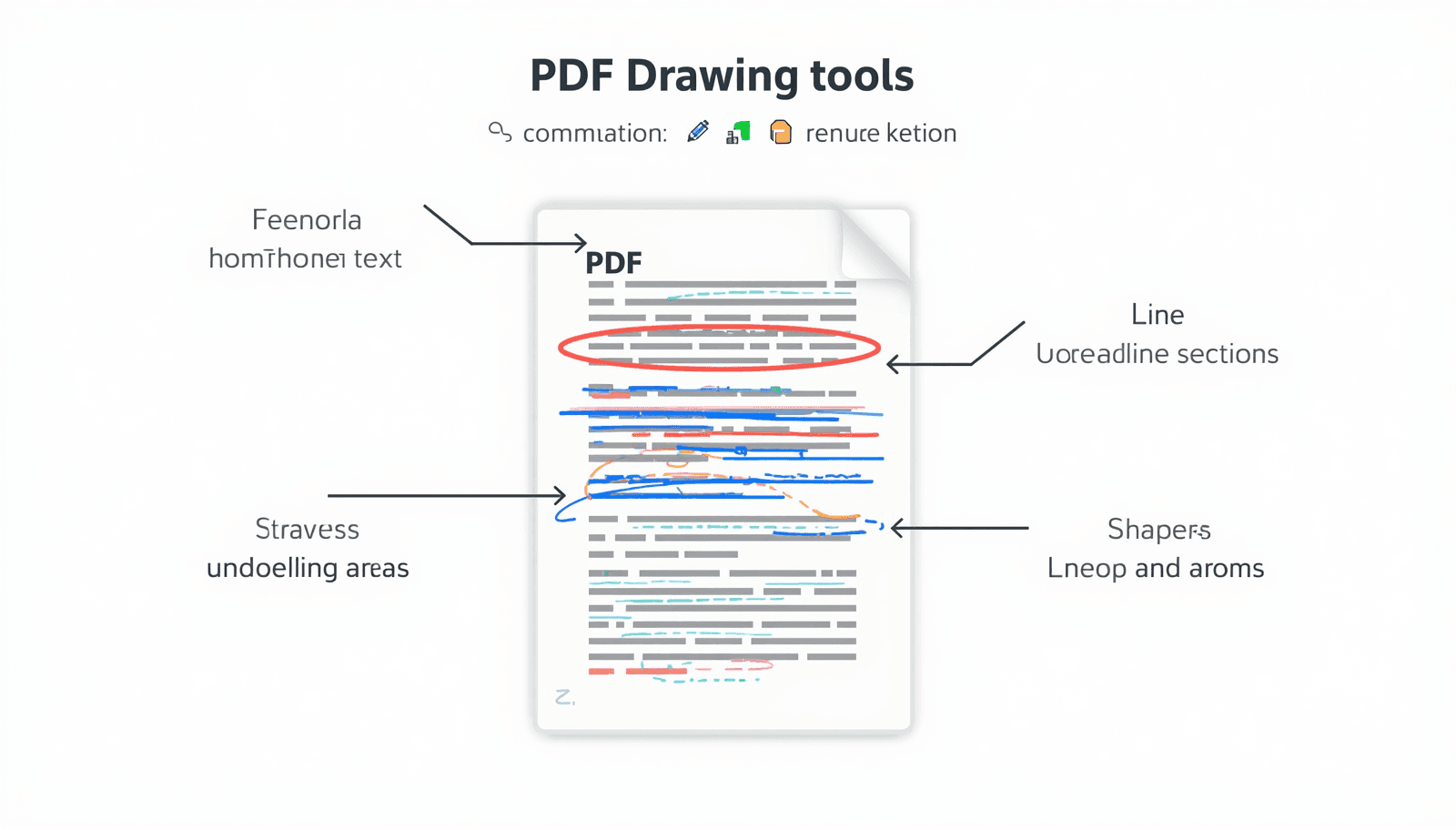
You are reviewing a contract and need to circle a clause. You are marking up a student assignment and want to sketch a correction in the margin. You have a blueprint or technical diagram that needs annotations drawn directly on the page. In every case, the question is the same: how do you draw on a PDF without printing it, without buying Adobe Acrobat, and without spending ten minutes figuring out a complicated tool?
Drawing on a PDF is one of the most searched PDF tasks in 2026 — and one of the most inconsistently handled. Some tools only support basic lines. Some require signup before you can save your work. Some produce annotations that look fine on screen but disappear when the file is opened on a different device.
This guide covers every practical method: drawing freehand online free, drawing straight lines on a PDF document, drawing on a PDF on Mac using Preview, drawing on a PDF on iPad, and what to do when you need more control than a basic tool provides. Every method is tested, practical, and free or low-cost.
Skip the reading and draw right now: PDF Draw tool — draw freehand, add annotations, and save your marked-up PDF in seconds. No signup, no watermark, no software required.
Why People Draw on PDFs — Real Use Cases
Understanding why people draw on PDFs helps clarify what kind of drawing tool you actually need. The use cases are more varied than most people realize:
Contract and legal review: circling specific clauses, drawing arrows to referenced sections, marking signature locations
Academic feedback: teachers annotating student work with corrections, circled errors, and margin sketches
Design and creative feedback: UX designers marking up wireframes, circling interface elements, sketching alternative layouts
Architecture and engineering: annotating blueprints with corrections, measurements, or approval marks
Medical and scientific documents: circling data points, annotating diagrams, highlighting specific findings in charts
Business reports: drawing attention to specific figures, circling anomalies in data, sketching quick diagrams in margins
Personal study: underlining, circling, drawing concept maps directly on PDF textbooks and research papers
According to Adobe's PDF research, PDF annotation and markup is one of the three most common PDF tasks across professional environments — alongside reading and form completion. Drawing is the most expressive form of annotation because it communicates ideas that text comments cannot.
How to Draw on a PDF Online Free — Step by Step
For most users, a free browser-based tool is the fastest and most practical approach. No installation, no account, no cost — open the tool, draw on your PDF, download the result.
Transfonic's PDF Draw tool gives you a full freehand drawing canvas directly on your PDF page. Here is the complete workflow:
1. Open Transfonic's PDF Draw tool in your browser
2. Upload your PDF by clicking the upload area or dragging and dropping the file
3. Your PDF opens in the browser-based editor
4. Select the Draw tool from the toolbar
5. Choose your color and stroke thickness
6. Draw freehand directly on the PDF page — circle, underline, sketch, annotate
7. Use the eraser to remove any marks you want to correct
8. Navigate to other pages to draw on additional locations
9. Click Download to save your annotated PDF with all drawings embedded
Drawings are saved as a proper annotation layer within the PDF — they display correctly in any standard PDF viewer, including Adobe Reader, Preview on Mac, and browser-based viewers. Your file is processed securely and deleted automatically after download.
How to Draw a Line on a PDF Document
Drawing a straight line on a PDF is one of the most common specific requests — used for underlining, dividing sections, pointing to specific elements, or creating simple diagrams. Freehand drawing rarely produces a clean straight line, so most PDF tools handle this separately.
Using a Shape Tool for Straight Lines
The most reliable way to draw a straight line on a PDF document is using the shape or line tool rather than the freehand draw tool. Shape tools produce geometrically precise lines that stay perfectly straight regardless of how steady your hand is. Most PDF editors including Transfonic's PDF Draw tool, include a dedicated line drawing option alongside freehand drawing.
Using Shift Key for Constrained Lines
In many drawing tools — including Mac's Preview — holding the Shift key while drawing constrains the line to perfect horizontal, vertical, or 45-degree angles. This is the fastest way to draw perfectly straight lines without switching to a shape tool.
Arrow Lines for Direction and Callouts
Arrow lines are a specific type of straight line that adds a directional arrowhead at one end. They are extensively used in document review for pointing to specific elements, creating callouts, and indicating relationships between content elements. Most PDF annotation tools offer an arrow shape option alongside basic lines.
How to Draw on a PDF on Mac — Using Preview
Mac users have a built-in option that handles basic PDF drawing without any additional software: Preview, Apple's default PDF and image viewer. Preview's Markup toolbar includes freehand drawing, shape tools, and line drawing — all for free.
Step-by-Step: Drawing on PDF in Preview
10. Open your PDF in Preview (right-click the file and choose Open With > Preview)
11. Show the Markup Toolbar: go to View > Show Markup Toolbar, or click the pencil icon at the top right of the toolbar
12. Select the Sketch tool for freehand drawing — Preview automatically smooths your strokes into cleaner lines
13. Select the Draw tool for pressure-sensitive freehand marks (requires Force Touch trackpad)
14. Select Shapes for clean geometric shapes — rectangles, circles, lines, and arrows
15. Choose your color from the color picker and adjust stroke thickness
16. Draw directly on the PDF page using your mouse, trackpad, or Apple Pencil (if using iPad via Continuity)
17. Save with Command+S — Preview saves changes directly into the file
Preview Sketch Tool — Auto-Correction Feature
Preview's Sketch tool has a useful automatic correction feature: if it detects that your freehand mark resembles a standard shape — a line, circle, rectangle, or arrow — it offers to replace your sketch with a clean geometric version. This makes it much easier to add professional-looking shapes without needing precise mouse control.
Limitations of Preview for PDF Drawing
No true eraser — you can only undo recent marks using Command+Z, not selectively erase individual strokes
Drawings may display inconsistently in non-Apple PDF viewers — particularly after further edits in another application
Limited stroke customization compared to dedicated PDF editors
Force Touch pressure sensitivity only works on Macs with Force Touch trackpads — older hardware has limited drawing responsiveness
For simple, occasional drawing tasks on Mac, Preview is completely sufficient. For professional document markup requiring precise control, consistent cross-platform display, or extensive annotation, a dedicated browser-based tool gives better results.
How to Draw on a PDF on iPad
iPad is arguably the best device for drawing on PDFs — especially with Apple Pencil, which provides natural pen-like precision that no mouse or trackpad can match. The combination of a large touch screen and Apple Pencil makes PDF annotation feel like writing on paper.
Method 1: Using Files App and Markup
18. Open your PDF in the Files app
19. Tap the pencil icon at the top right to open Markup mode
20. Select the pen, pencil, or marker tool from the toolbar at the bottom
21. Choose your color and stroke thickness
22. Draw directly on the PDF with your finger or Apple Pencil
23. Tap Done to save — the drawings are embedded in the PDF file
Method 2: Using Safari with a Browser-Based Tool
For iPad users who prefer a more complete annotation interface, opening a browser-based PDF drawing tool in Safari gives access to the same features available on desktop. Upload your PDF, draw using touch input, and download the annotated result. This approach works on any iPad model without requiring a specific app.
Apple Pencil Tips for PDF Drawing on iPad
Use the Scribble feature — Apple Pencil can convert handwritten text to typed text in supported apps, useful for adding legible notes alongside drawings
Enable palm rejection in annotation apps — this prevents your hand resting on the screen from creating unwanted marks while writing
Use the double-tap feature (Apple Pencil 2) to quickly switch between drawing and erasing without lifting your hand
Zoom Writing mode in supported apps — lets you write in a magnified zone at the bottom of the screen for more precise annotations in tight spaces
Drawing on PDF on Windows — Built-In and Free Options
Microsoft Edge — Built-In Drawing Tools
Windows users have a free option built into Microsoft Edge, which includes a dedicated Draw mode for PDF files. Right-click any PDF file and choose Open With > Microsoft Edge. Once the PDF opens, look for the pen icon in the toolbar to enter Draw mode. You can select pen color and thickness, draw freehand marks, highlight sections, and erase mistakes. Edge saves the annotated file when you press Ctrl+S.
Edge's drawing tools are basic but sufficient for quick annotations. Modern browsers handle PDFs using open source rendering technology — Mozilla's PDF.js is the engine that powers PDF rendering in Firefox and is used as the foundation for many browser-based PDF tools — which is why browser-based PDF editing works without installing any desktop software.
Browser-Based Tool (Recommended for Windows)
For Windows users who need more control than Edge provides — including proper shape tools, color options, stroke width control, and consistent annotation saving — a browser-based PDF drawing tool is the best free option. It works in any browser, requires no installation, and handles the annotation layer correctly for consistent display across different PDF viewers.
Drawing Types Explained: Freehand vs Shapes vs Lines
Drawing Type | Best For | Precision | When to Use |
Freehand draw | Circling, sketching, free annotations | Low — depends on hand | Quick callouts, margin notes, organic marks |
Straight line | Underlining, dividers, pointers | High — geometric | Section dividers, pointing to elements |
Arrow | Callouts, direction indicators | High — geometric | Pointing to specific content, flow diagrams |
Rectangle | Bounding boxes, highlighting areas | High — geometric | Selecting regions, form fields and emphasis boxes |
Circle/Ellipse | Circling errors, highlighting points | High — geometric | Drawing attention to specific elements |
Polygon | Custom area marking | Medium | Non-rectangular region selection |
Related PDF Annotation Tools That Work Alongside Drawing
Drawing is often just one part of a complete PDF annotation workflow. Transfonic's full PDF Reviewer suite covers every annotation task you need, alongside drawing:
PDF Highlight: highlight specific text sections alongside your drawings. The most common companion tool to freehand annotation — use highlights to mark text and drawings to add visual callouts to the same document. Learn more in our complete guide on how to highlight text in a PDF.
PDF Add Text: add typed text annotations alongside drawings. Useful when your handwriting or freehand notes are not legible enough — add a text note to clarify a drawing or label a circled element.
PDF Insert Image: insert images, diagrams, or visual references into your PDF alongside drawn annotations. See our full guide on how to add an image to a PDF for the complete workflow.
PDF Add Signature: add your signature to a reviewed and annotated document. Often the final step after marking up a contract or approval document with drawings and notes.
PDF Fill Form: fill in form fields alongside drawn annotations. Useful for documents that combine fillable fields with sections requiring freehand markup.
PDF Add Watermark: add DRAFT, APPROVED, or CONFIDENTIAL watermarks to annotated documents before sharing.
PDF Add Page Numbers: add page numbers to your PDF after annotating and marking it up. Useful when sharing reviewed documents that span multiple pages — numbered pages make it easier for collaborators to reference specific sections. See our full guide on how to add page numbers to a PDF.
PDF Rotate: correct page orientation before or after drawing on your PDF. If a page is sideways or upside down, rotating it first ensures your annotations land in the right position. See our full guide on how to rotate a PDF.
PDF to Word: If you need to edit the actual text, layout, or tables instead of only drawing on top of the page, follow our guide on how to convert PDF to Word without losing formatting
Common Problems When Drawing on PDFs and How to Fix Them
My drawings disappear when I open the PDF in a different viewer
This happens when annotations are saved in a non-standard format or when the PDF has been flattened by one tool but the annotations were not properly embedded. To prevent this, use a tool that saves annotations as a standard PDF annotation layer — not as a separate overlay file. Always test by opening your saved PDF in a second viewer before sharing. To prevent this, use a tool that saves annotations as a standard PDF annotation layer as defined by the PDF Association's specification — not as a separate overlay file.
The PDF is locked and I cannot draw on it
Some PDFs have security restrictions that prevent annotation and editing. If your PDF has a permission password set by the original creator, you will not be able to draw on it without removing the restriction. Contact the document owner for an unrestricted version, or check if the document's usage terms permit annotation.
My freehand lines look shaky and unprofessional
This is normal when drawing with a mouse — mice are not designed for precision drawing. Use the shape tools for geometric elements instead of freehand drawing. If you need natural handwriting quality, use a touchscreen device with a stylus or Apple Pencil on iPad, which provides the natural hand movement that produces clean strokes.
The drawing tool slows down or lags on large PDFs
Large PDF files with many pages or high-resolution images can cause performance issues in browser-based tools. Try working on a smaller page range, reducing browser tabs while annotating, or compressing the PDF file before uploading. For very large documents — over 50MB — a desktop application may perform better than a browser-based tool.
Conclusion: Draw on Any PDF in Seconds — Free, Any Device, No Adobe Required
Drawing on a PDF in 2026 does not require Adobe Acrobat, a desktop application, or a paid subscription. Free tools handle the task reliably across every device — online in a browser, natively on Mac with Preview, with Apple Pencil on iPad, and with Microsoft Edge on Windows.
The key is matching the right tool to your use case. For quick freehand marks and simple shapes, any browser-based tool works. For precise line drawing, use shape tools rather than freehand. For the most natural handwriting experience, use a stylus on a touchscreen device. For consistent cross-platform annotation that displays correctly everywhere, use a tool that saves drawings as standard PDF annotation layers.
Draw on your PDF now with the PDF Draw tool by Transfonic — upload your document, draw freehand or add shapes, and download your annotated PDF in seconds. No signup, no watermark, no software required.