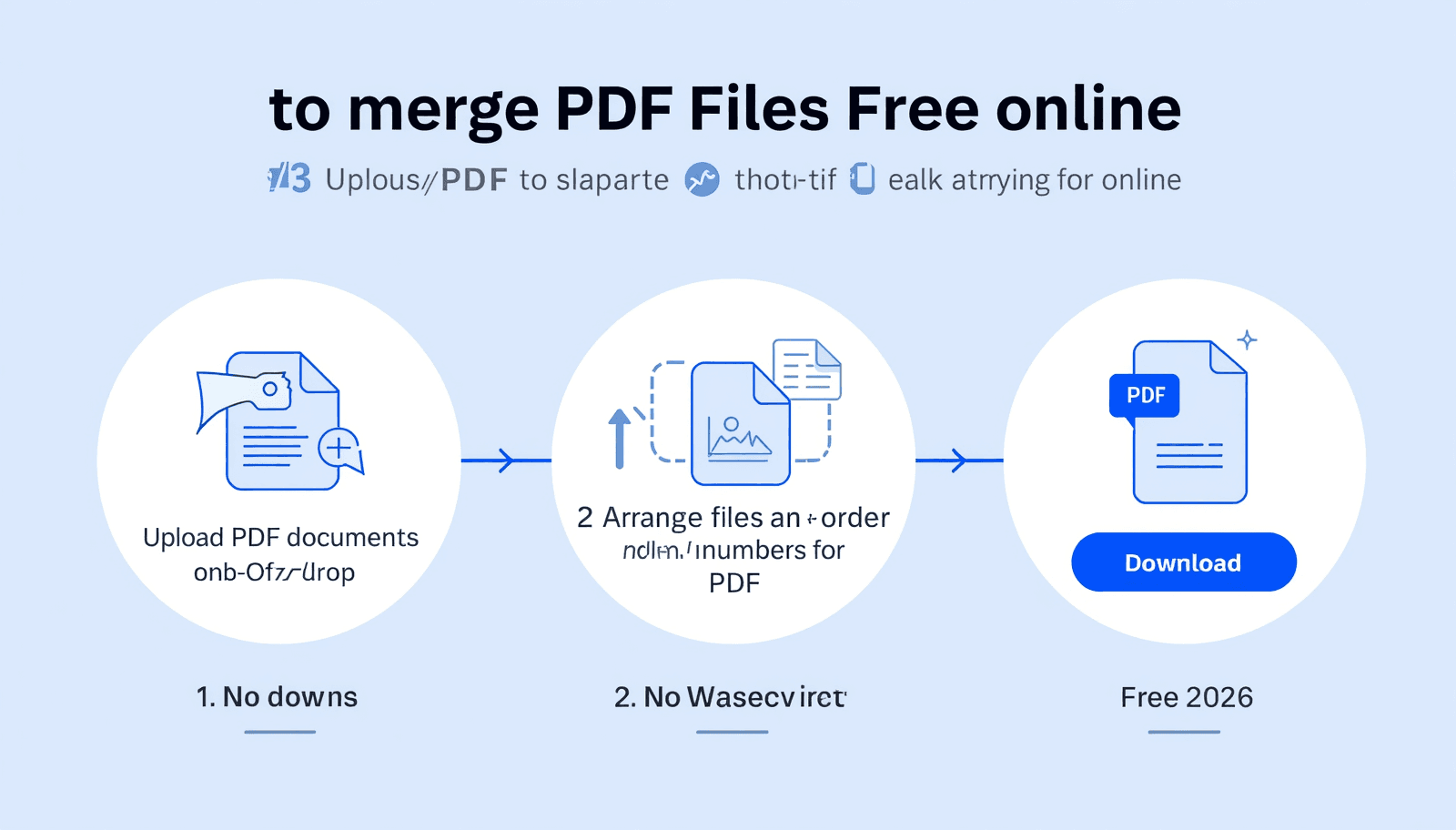
To merge PDF files free online, upload your documents to Transfonic's PDF Merge tool, arrange them in the order you want, and download the combined file in seconds. No signup, no watermark, no file size limits for standard use.
Merging PDFs — combining two or more separate PDF files into one single document — is one of the most common PDF tasks in any workflow. Whether you are combining scanned invoices, assembling a multi-chapter report, consolidating signed contracts, or pulling together research papers, the result is always the same: one clean, organized file instead of a scattered collection.
This guide covers every method: merging PDFs free online with Transfonic, merging on Mac using Preview and Finder Quick Actions, merging on Windows, merging on iPhone and Android, and how to handle the edge cases that cause most merges to go wrong — mismatched page sizes, password-protected files, and preserving bookmarks and form fields across the merge.
Merge your PDFs now: Transfonic's free PDF Merge tool — combine any number of PDF files in seconds, no signup, no watermark, no software required.
Why Merging PDFs Is More Useful Than It Sounds
A single well-organized PDF is easier to share, easier to store, easier to search, and easier to navigate than a collection of separate files. The practical use cases span every industry and workflow:
Business and finance: combining monthly invoices into a single quarterly PDF for accounting, merging bank statements, or consolidating expense reports
Legal and contracts: assembling multi-part agreements from separately signed sections, combining supporting documents for a legal submission and organizing discovery documents
Academic and research: combining chapters of a thesis, assembling literature review sources and consolidating lecture notes from multiple sessions
Real estate: combining property listings, inspection reports, title documents, and contracts into a single transaction file
HR and administration: assembling employee onboarding documents, combining policy documents and acknowledgment forms, creating training packs
Healthcare: consolidating patient records, combining referral letters with test results and imaging reports
According to the PDF Association's annual industry report, PDF remains the most widely used document format in professional environments globally — and merging remains the single most performed PDF operation across both consumer and enterprise use cases.
How to Merge PDF Files Online Free — Step by Step
Transfonic's PDF Merge tool combines multiple PDFs into a single file entirely in your browser. No account, no installation, no cost, and your files are deleted automatically after download:
1. Open Transfonic's PDF Merge tool in your browser
2. Upload your PDF files — click to browse or drag and drop multiple files at once
3. Your files appear as a list with thumbnail previews
4. Drag and drop the files into the order you want them to appear in the merged document
5. Review the page count and file order before proceeding
6. Click Merge to combine all files into a single PDF
7. Preview the merged result to confirm page order and content
8. Click Download to save your merged PDF
The merged file preserves all content from each source PDF — text, images, formatting, and embedded fonts. Modern browsers handle PDF processing using open-source rendering technology like Mozilla's PDF.js, which enables browser-based PDF tools to merge, split, and modify PDF files without requiring any desktop software installation.
Important: always check the file order before merging. Reordering after the merge requires either re-merging or using a reorder tool, both of which add extra steps. Getting the order right before clicking Merge is faster.
How to Merge PDF Files on Mac — Three Built-In Methods
Mac users have three free built-in options for merging PDFs — no third-party software required. Each method suits a different situation.
Method 1: Preview — Best for Full Control
Preview is Mac's default PDF viewer and supports merging with full page-level control. This is the best method when you need to arrange specific pages from multiple documents rather than just combining whole files in order.
As documented in Apple's official Preview support guide, the process works by opening PDFs in Preview and using the thumbnail sidebar to drag pages between documents:
9. Open the first PDF in Preview
10. Go to View > Thumbnails to show the page sidebar
11. Open the second PDF in Preview — it opens in a separate window
12. In the second PDF's thumbnail sidebar, select the pages you want to add — Command+A for all pages
13. Drag the selected thumbnails from the second PDF's sidebar into the first PDF's sidebar at the position where you want them inserted
14. Repeat for any additional PDFs
15. Go to File > Export as PDF to save the merged document with a new filename
Critical: use File > Export as PDF rather than just saving. If you save directly over the original file, Preview overwrites it permanently — your original separate PDFs are gone. Export as PDF creates a new merged file while leaving the originals untouched.
Before merging multiple PDFs, it’s a good idea to work only with the pages you actually need. You can split your PDF into separate pages to isolate important sections. This ensures your final merged document is organized, avoids unnecessary pages, and makes the process more efficient.
Method 2: Finder Quick Actions — Fastest for Simple Merges
Finder's Quick Actions feature offers a one-click merge for straightforward combinations where page order is simply the order you select the files:
16. Open Finder and navigate to the folder containing your PDFs
17. Hold Command and click each PDF file to select them all
18. Right-click on any selected file
19. Choose Quick Actions > Create PDF
20. Finder creates a merged PDF in the same folder immediately
The limitation: you cannot control the merge order using Quick Actions — Finder merges files in the order they are displayed or selected. For most alphabetically named files, this works fine. For files where order matters, use Preview's drag-and-drop method instead.
Method 3: Mac Terminal — For Automation and Batch Merging
For power users and developers who need to merge large numbers of PDFs or automate the process, macOS includes a built-in Python script called join.py specifically for PDF merging. This approach requires no additional software and works directly from the Terminal command line. It is particularly useful for batch-processing dozens of files or automating recurring merge tasks via scripts.
How to Merge PDF Files on Windows
Browser-Based Tool — Best Free Option on Windows
Windows does not have a built-in PDF merger equivalent to Mac's Preview. The most reliable free approach on Windows is a browser-based tool accessed through Chrome, Edge, or Firefox — no installation, no account, works on any Windows version.
Microsoft Edge — Basic Option
Microsoft Edge can open and print PDFs but does not support direct merging. A workaround that some users use: print each PDF to a single print job using Microsoft Print to PDF — but this is unreliable, can degrade image quality, and does not preserve bookmarks or form fields. Use a dedicated browser-based merge tool for clean, reliable results on Windows.
Microsoft Word — For Simple Text PDFs Only
Word can open PDFs and allow you to copy-paste content between documents, then save as PDF. This only works cleanly for simple text-heavy PDFs — complex layouts, images, tables, and multi-column content will shift or break during the Word conversion. Only use this approach as a last resort for very simple documents.
How to Merge PDF Files on iPhone and iPad
Files App — Quick Merge on iOS
21. Open the Files app on your iPhone or iPad
22. Navigate to the folder containing your PDFs
23. Long-press the first PDF to bring up the context menu
24. Tap Select to enter selection mode
25. Tap each additional PDF you want to merge
26. Tap the three-dot menu at the bottom
27. Choose Create PDF — iOS merges the selected files into a single PDF
28. The merged PDF saves in the same folder
The iOS Files app merge works well for simple PDFs. For documents with complex formatting, form fields, or bookmarks, a browser-based tool in Safari gives more reliable results.
Browser-Based Tool in Safari — Most Reliable on iOS
Open Transfonic's PDF Merge tool in Safari on your iPhone or iPad. The responsive interface works cleanly on mobile — upload your files, arrange the order, merge, and download directly to your device. The merged file saves to your Downloads folder and can be moved to Files or iCloud Drive from there.
How to Merge PDF Files on Android
29. Open Chrome on your Android device
30. Navigate to Transfonic's PDF Merge tool
31. Tap the upload area and select your PDF files from local storage or Google Drive
32. Arrange the files in the correct merge order
33. Tap Merge and then Download
34. The merged file saves to your Downloads folder automatically
Android does not have a built-in PDF merge feature in its default apps. Google Drive can open and view PDFs but does not support merging. A browser-based tool in Chrome is the most consistent and reliable approach for merging PDFs on Android without installing any app.
What Happens to Your PDF Content When You Merge — The Technical Reality
Understanding what actually happens during a PDF merge helps you anticipate what will and will not be preserved in the output.
What Is Always Preserved
Page content: text, images, vector graphics, and embedded fonts from every source PDF carry over intact
Page dimensions: each page retains its original size. An A4 page and a Letter page in the same merged document will both display at their correct dimensions
Page orientation: portrait and landscape pages coexist correctly in a merged document
What May Be Affected
Bookmarks and table of contents: bookmarks from individual documents may or may not merge cleanly depending on the tool. Complex nested bookmark structures sometimes flatten. Always verify bookmarks in the merged output if navigation is important
Form fields: interactive form fields from source PDFs generally survive merging, but if two source documents have fields with identical names, conflicts can occur. Test merged forms before distributing
Digital signatures: merging a digitally signed PDF typically invalidates the signature, as the merge operation modifies the file structure. Never merge PDFs if preserving the validity of existing digital signatures is required
Document metadata: title, author, and keyword metadata from individual source PDFs do not automatically combine. The merged document may carry only the metadata from the first file
How to Merge Password-Protected PDFs
Password-protected PDFs cannot be merged without first removing the password restriction. There are two types of PDF passwords and the merge behavior differs for each:
Open password (user password): prevents opening the file without entering the password. You can supply the password when uploading to a merge tool, and the tool can then access and merge the content
Permission password (owner password): restricts editing, printing, and copying without preventing the file from being opened. Merging a permission-restricted PDF requires a tool that can handle restricted documents, or the restriction must be removed first
If you need to merge PDFs with permission restrictions, contact the document creator to provide an unrestricted version. Removing permission restrictions without authorization may violate the terms under which the document was shared.
Merging PDFs with Different Page Sizes — What to Expect
A common scenario in professional workflows: merging a Letter-size report with an A4 attachment, or combining a landscape diagram PDF with a portrait document. When you merge PDFs with different page sizes, each page retains its original dimensions in the merged output. No normalization or resizing happens automatically.
This is generally the correct behavior — a landscape chart should remain landscape, and an A4 page should not be distorted to Letter size. The merged PDF is simply a collection of pages at their original sizes. Most PDF viewers display mixed-size documents correctly, adjusting zoom level per page.
If you need all pages in a merged document to be the same size — for print production or consistent document presentation — use Transfonic's PDF Reorder Page tool to organize pages and review dimensions, then handle size normalization before merging.
PDF Merge Workflow — Best Practice Order of Operations
For professional documents, the order in which you prepare and merge PDFs matters. Following this sequence produces the cleanest results:
35. Prepare individual documents: finalize all content in each source PDF before merging. Editing after merging is harder than editing individual files
36. Remove unwanted pages: use a PDF delete pages tool to strip any pages you do not want in the final merged document before combining
37. Rotate any misoriented pages: fix page orientation in individual files before merging rather than after
38. Confirm the merge order: lay out all source files and confirm the sequence before uploading
39. Merge: combine all prepared files in the correct order
40. Review the merged output: scroll through every page of the merged document to verify content, page order, and formatting
41. Add page numbers: number the merged document as the final step, after all content is confirmed
42. Compress if needed: reduce file size for email or upload if the merged file is large
Transfonic's PDF Reviewer suite covers every step in this workflow: PDF Delete Page, PDF Rotate Page, PDF Merge, and PDF Add Page Number — all free, all in one platform.
Common Mistakes When Merging PDFs
Not checking file order before merging: reordering after the fact adds unnecessary steps. Confirm sequence before clicking merge
Merging over the original files: always save the merged output as a new file. In Preview on Mac, use Export as PDF not Save to avoid overwriting originals
Merging PDFs with active digital signatures: the merge operation invalidates existing signatures. Get signatures on the merged document, not on individual files before merging
Ignoring file size: merging multiple large PDFs can produce very large output files. Check the merged file size before sharing or uploading
Not reviewing the merged output: always open and scroll through the complete merged file before treating it as final
Merging unnecessary pages: clean up individual PDFs before merging. Removing a page before the merge is faster than splitting the merged file to remove it after
Related PDF Tools for Complete Document Management
PDF Split — the reverse of merge. Split a large PDF into separate files by page range, every N pages, or at specific page breaks. Use before merging if you only need sections of a larger document.
PDF Reorder Page — reorder pages within the merged document after combining. If the merge order was not quite right, reorder without needing to re-merge from scratch.
PDF Delete Page — remove specific pages from the merged document. Useful for cleaning up cover pages, blank separator pages, or duplicate content that appears in the merge.
PDF Add Page Number — add consistent page numbers across the entire merged document. Always add numbers after merging, not before.
PDF Add Watermark — apply DRAFT, CONFIDENTIAL, or branding watermarks across all pages of the merged document.
Once your merged document is ready, you may need to sign it before sharing. See our complete guide on how to add a signature to a PDF — covering electronic signatures, drawn signatures, and legally valid e-signing free online without any software. For annotation and review after merging, see our guides on how to highlight text in a PDF, how to draw on a PDF and how to add page numbers to a PDF.
Conclusion — Merge Any PDFs in Seconds, Free, Any Device
Merging PDF files does not require paid software, an account, or technical knowledge. Free browser-based tools handle the task reliably across every device — and Mac users have three built-in options that work without installing anything at all.
The details that make a professional merge: confirm file order before combining, use Export as PDF on Mac rather than saving over originals, check that bookmarks and form fields transferred correctly, and add page numbers as the final step after the merge is complete.
Merge your PDF files now with Transfonic's free PDF Merge tool — upload your files, arrange the order, and download your combined PDF in seconds. No signup, no watermark, no software required.