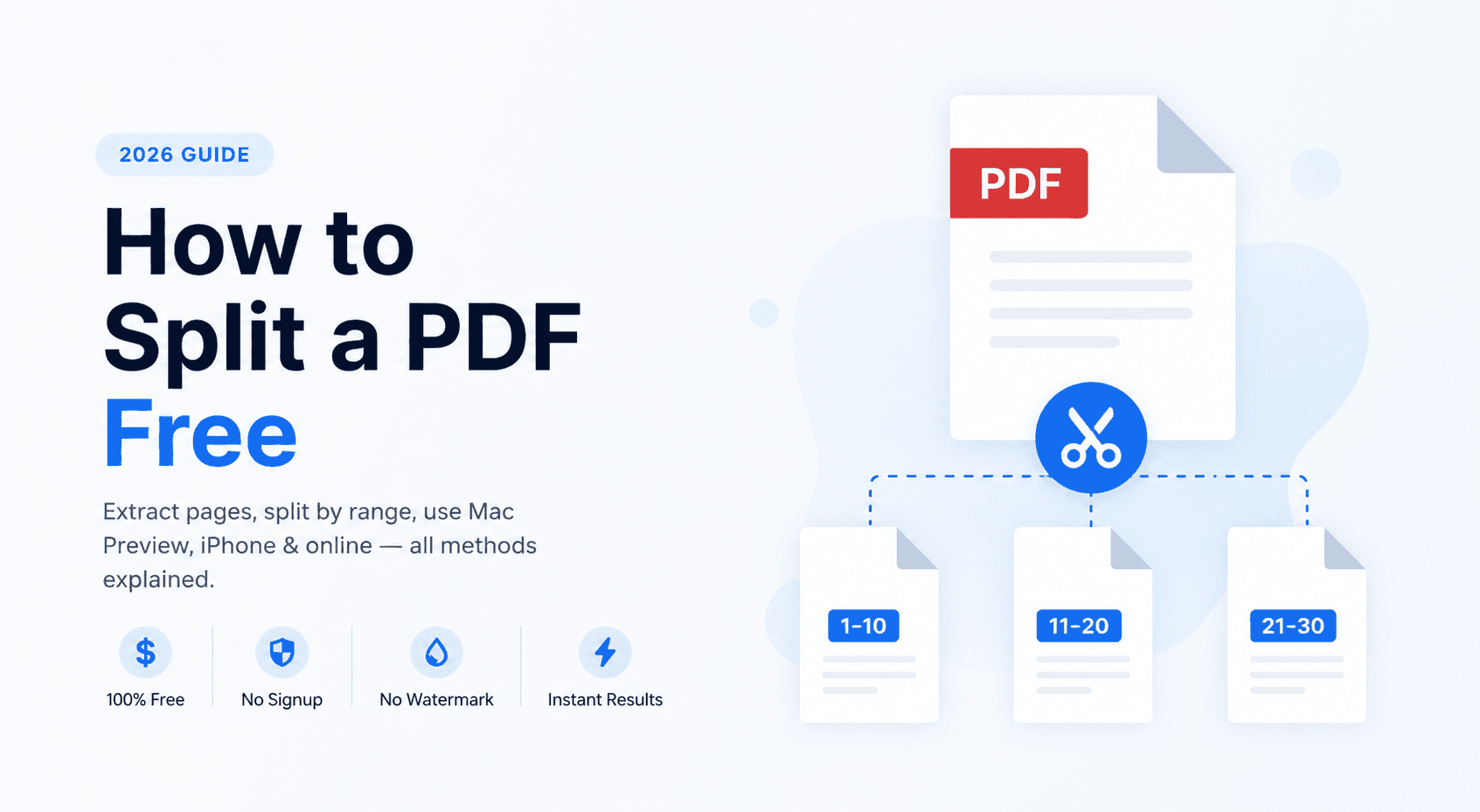
To split a PDF free online, upload your file to Transfonic's PDF Split tool, choose how you want to split it — by page range, every N pages, or extract specific pages — and download the separate files in seconds. No signup, no watermark, no software required.
Splitting a PDF means dividing one file into two or more smaller files. You might need to extract a single chapter from a long report, separate a combined invoice document into individual invoices, pull out specific pages to share without sending the whole file, or break a large scanned document into manageable sections. Whatever the reason, the process is straightforward when you have the right tool.
This guide covers every method: splitting PDFs free online, splitting on Mac using Preview (with the exact steps most guides get wrong), splitting on a MacBook, splitting on iPhone, and splitting on Windows and Android. It also covers the three main splitting approaches — by page range, every N pages, and extracting specific pages — and when to use each one.
Split your PDF now: Transfonic's free PDF Split tool — extract pages or split by range in seconds, no signup, no watermark, no software required.
When Would You Actually Need to Split a PDF?
Splitting a PDF is one of those tasks that comes up more often than most people expect. The use cases span every professional context:
Extracting a specific chapter or section from a long report to share with a colleague who only needs that part
Separating a combined bank statement or invoice PDF into individual monthly files for accounting purposes
Pulling out a single signed page from a multi-page contract to return to the sender
Breaking a large scanned document into smaller files for easier upload to a system with file size limits
Extracting specific pages from a research paper to include in a presentation or citation
Separating a multi-applicant form submission into individual applicant files
Removing confidential pages before sharing the rest of the document
Creating individual handout pages from a multi-page presentation PDF
According to the PDF Association's document workflow research, document splitting and extraction is among the five most performed PDF operations in professional environments, second only to merging in frequency of use across business, legal, and academic workflows.
The Three Ways to Split a PDF: Which One Do You Need?
Most people think of PDF splitting as a single operation but there are actually three distinct approaches, each suited to a different need. Understanding which one applies to your situation saves time and produces cleaner results.
Split Method | What It Does | Best For | Output |
By page range | Extracts a specific range of pages (e.g. pages 5-12) | Extracting a chapter, section, or defined block | One file containing only those pages |
Every N pages | Divides document into equal chunks (e.g. every 10 pages) | Breaking large documents into consistent segments | Multiple files of equal page count |
Extract specific pages | Pulls out individual non-consecutive pages (e.g. pages 2, 7, 15) | Extracting scattered pages from across a document | One or multiple files with selected pages only |
For most everyday splitting tasks — extracting a chapter, separating a section, pulling out specific pages — the page range method is the most practical. Every N pages is most useful for batch processing large scanned documents. Individual page extraction is the right approach when you need non-consecutive pages from different parts of a document.
How to Split a PDF Online Free — Step by Step
Transfonic's PDF Split tool handles all three splitting methods directly in your browser. No installation, no account, no cost:
Open Transfonic's PDF Split tool in your browser
Upload your PDF by clicking the upload area or dragging and dropping the file
Your PDF opens with a page count and thumbnail overview
Choose your split method — by page range, every N pages, or extract specific pages
Enter your page range or select specific pages from the thumbnail view
Preview the split to confirm which pages will appear in each output file
Click Split to process the document
Download each output file individually or as a ZIP archive if multiple files were created
Your files are processed securely in the browser using open source PDF rendering technology. Mozilla's PDF.js powers PDF rendering in modern browsers, enabling browser-based tools to split, merge, and modify PDF files without requiring any desktop software or plugin installation. Files are automatically deleted after download — nothing is stored on any server.
How to Split a PDF on Mac — Using Preview
Mac users have a built-in option for PDF splitting: Preview. However, Preview's splitting method is not intuitive and most guides explain it incorrectly. Here is exactly how it works.
Preview does not have a dedicated 'Split' button. Instead, you split a PDF by dragging pages out of the thumbnail sidebar onto the desktop or into a Finder folder. Each dragged page or group of pages becomes a separate PDF file.
This process is documented in Apple's official Preview support documentation, which covers both combining and separating PDF pages using the thumbnail sidebar:
Method 1: Extract Pages by Dragging to Desktop
9. Open your PDF in Preview
10. Go to View > Thumbnails to show the page sidebar
11. Select the page or pages you want to extract — click a single thumbnail, or hold Command and click multiple thumbnails for non-consecutive pages, or hold Shift and click for a consecutive range
12. Drag the selected thumbnails from the sidebar directly onto your desktop or into a Finder folder
13. Preview creates a new PDF file containing only those pages — the original file is unchanged
14. Rename the new file as needed
Method 2: Split into Individual Pages
15. Open your PDF in Preview
16. Go to View > Thumbnails
17. Select all pages: Command+A
18. Drag all thumbnails to a desktop folder
19. Preview creates one separate PDF file per page — useful for splitting a document into individual page files
The Critical Mistake Most Mac Users Make
The most common error when splitting PDFs in Preview is saving changes to the original file rather than creating new files. If you delete pages from a PDF open in Preview and then save — rather than dragging pages to create new files — you permanently modify or destroy your original document. Preview saves changes automatically. Always use the drag-to-desktop method to create new split files while keeping the original intact.
Preview Splitting Limitation
Preview's drag method works well for extracting individual pages or small groups of pages. For splitting a 100-page document into ten 10-page sections, the drag method is slow and error-prone. A browser-based split tool handles this kind of structured splitting more efficiently and reliably.
How to Split a PDF on MacBook: Mac-Specific Tips
The methods above work identically on all Mac hardware, including MacBook Air and MacBook Pro. However, MacBook users have two additional convenient options worth knowing:
Finder Quick Actions: One-Click for Simple Splits
On macOS Monterey and later, Finder's Quick Actions menu includes basic PDF operations. Select your PDF in Finder, right-click, choose Quick Actions, and look for PDF options. While Quick Actions does not offer a direct split function, you can combine it with Preview's drag method for a fast workflow: open in Preview via Quick Actions, drag pages to split.
macOS Shortcuts App: Automate Recurring Splits
The macOS Shortcuts app (available since macOS Monterey) allows you to build automated PDF splitting workflows. If you regularly need to split PDFs in the same way — for example, extracting the first page of every incoming invoice PDF — you can build a one-click shortcut that handles the operation automatically. This is the most powerful free option on Mac for users who split PDFs regularly.
Terminal: For Batch Splitting
For power users who need to split large numbers of PDFs programmatically, macOS includes built-in Python tools that can split PDFs from the Terminal command line without any additional software. This approach is particularly useful for automating document processing workflows where the same split pattern is applied to multiple files.
How to Split a PDF on iPhone
iOS does not have a built-in dedicated PDF split function, but there are two reliable free methods:
Method 1: Files App — Extract Single Pages
20. Open your PDF in the Files app
21. Tap the Share icon
22. Choose Print
23. On the print preview screen, pinch outward on the document preview — this converts the print preview into a PDF
24. Select only the pages you want to extract using the page selection controls
25. Tap the Share icon that appears and choose Save to Files
26. The extracted pages are saved as a new PDF
This method is a workaround rather than a dedicated split function — it works but requires several steps. For straightforward page extraction on iPhone, a browser-based tool is more direct.
Method 2: Browser-Based Tool in Safari — Most Reliable
Open Transfonic's PDF Split tool in Safari on your iPhone. The responsive mobile interface allows you to upload your PDF, select the pages or range you want to extract, split, and download the result directly to your device. The file saves to your Downloads folder and can be moved to Files or iCloud Drive from there. This is the most reliable approach for splitting PDFs on iPhone without installing any app.
How to Split a PDF on Windows and Android
Windows
Windows does not have a built-in PDF split tool. Microsoft Edge can view PDFs, but does not support splitting. The most reliable free approach on Windows is a browser-based tool accessed through Chrome, Edge, or Firefox — upload your PDF, configure the split, and download the output files. No installation required, works on any Windows version.
Android
Android's built-in PDF viewer in Google Drive does not support splitting. For splitting PDFs on Android, open a browser-based PDF split tool in Chrome, upload your PDF, configure the split method, and download the output. The files save to your Downloads folder automatically.
How to Split PDF Pages Into Different Files — Page Extraction Explained
Extracting specific pages into separate files is slightly different from a standard split. In a standard split, you divide the document at defined points — page 1-10 becomes file one, pages 11-20 become file two. In page extraction, you select specific pages — pages 3, 7, and 15 — and create a new file containing only those pages, leaving the rest of the original document intact.
This is particularly useful for:
Pulling out non-consecutive pages that are related in content but scattered through a large document
Extracting all the signature pages from a multi-party contract
Selecting specific exhibits or appendices from a legal filing
Pulling out the pages relevant to a specific project from a general reference document
The key distinction from a page range split: extraction selects individual pages by number, regardless of their position relative to each other. A page range split always produces consecutive pages. If you need pages 2, 7, and 15 in a single output file, extraction is the correct method — a range split cannot produce non-consecutive page selections.
Split vs Extract vs Delete — Knowing the Difference
Split: divides the document into multiple output files. The original document is conceptually 'broken apart.' All pages appear in one of the output files
Extract: copies specific pages into a new file. The original document remains unchanged. The extracted pages exist in both the original and the new file until you delete them from the original
Delete pages: removes pages from the document permanently. Use when you want to reduce the document, not create a separate file from the removed pages
For most splitting use cases, the distinction between split and extract depends on what you want to do with the original: if you want to keep the full original and also have a smaller version, use extract. If you want to divide the document into separate parts and no longer need the combined original, use split.
Common Mistakes When Splitting PDFs
Splitting without keeping a backup: always keep a copy of the original, complete PDF before splitting. If you need the full document again, re-merging split files can sometimes affect formatting
Using Preview's save function instead of drag-to-desktop on Mac: saving changes in Preview modifies the original file. Always drag pages to create new files rather than deleting and saving
Not checking page numbers before splitting: always confirm your page numbering before setting ranges. A document with a cover page may have different displayed page numbers vs actual PDF page numbers
Forgetting to verify the output files: always open each split file and confirm it contains exactly the pages you intended
Splitting password-protected PDFs without removing restrictions first: permission-restricted PDFs may not split correctly. Remove restrictions or use the password when uploading to a split tool
Not considering file naming: split tools often generate generic output filenames. Rename output files immediately after splitting while the content is fresh in your memory
Related PDF Tools for Complete Document Management
PDF Merge: the companion to Split. If you split a document and later need to reassemble sections, merge them back into one. See our complete guide on how to merge PDF files.
PDF Extract Page: extract specific pages into a new file while keeping the original intact. Use when you need a subset of pages without modifying the source document.
PDF Delete Page: remove unwanted pages from a PDF permanently. Use when cleaning up a document before splitting or sharing.
PDF Reorder Page: rearrange pages within a document before splitting. Getting the page order right before splitting produces cleaner output files.
PDF Add Page Number: add page numbers to split output files. Each split file starts fresh at page 1 — re-number after splitting if consistent pagination matters.
For annotating PDFs after splitting, see our guides on how to highlight text in a PDF, how to draw on a PDF, and how to rotate a PDF.
Conclusion: Split Any PDF in Seconds, Free, Any Device
Splitting a PDF does not require expensive software or technical knowledge. Free browser-based tools handle every splitting scenario — page ranges, equal chunks, specific page extraction — in seconds on any device. Mac users have the additional option of Preview's drag-to-desktop method for quick extractions, with Shortcuts app automation for recurring tasks.
The one mistake worth repeating: on Mac, always drag pages to create new files rather than deleting pages and saving. Saving changes in Preview modifies your original document permanently. Create first, then clean up.
Split your PDF now with the PDF Split tool — extract pages, split by range, or divide into equal sections. Download your output files in seconds. No signup, no watermark, no software required.