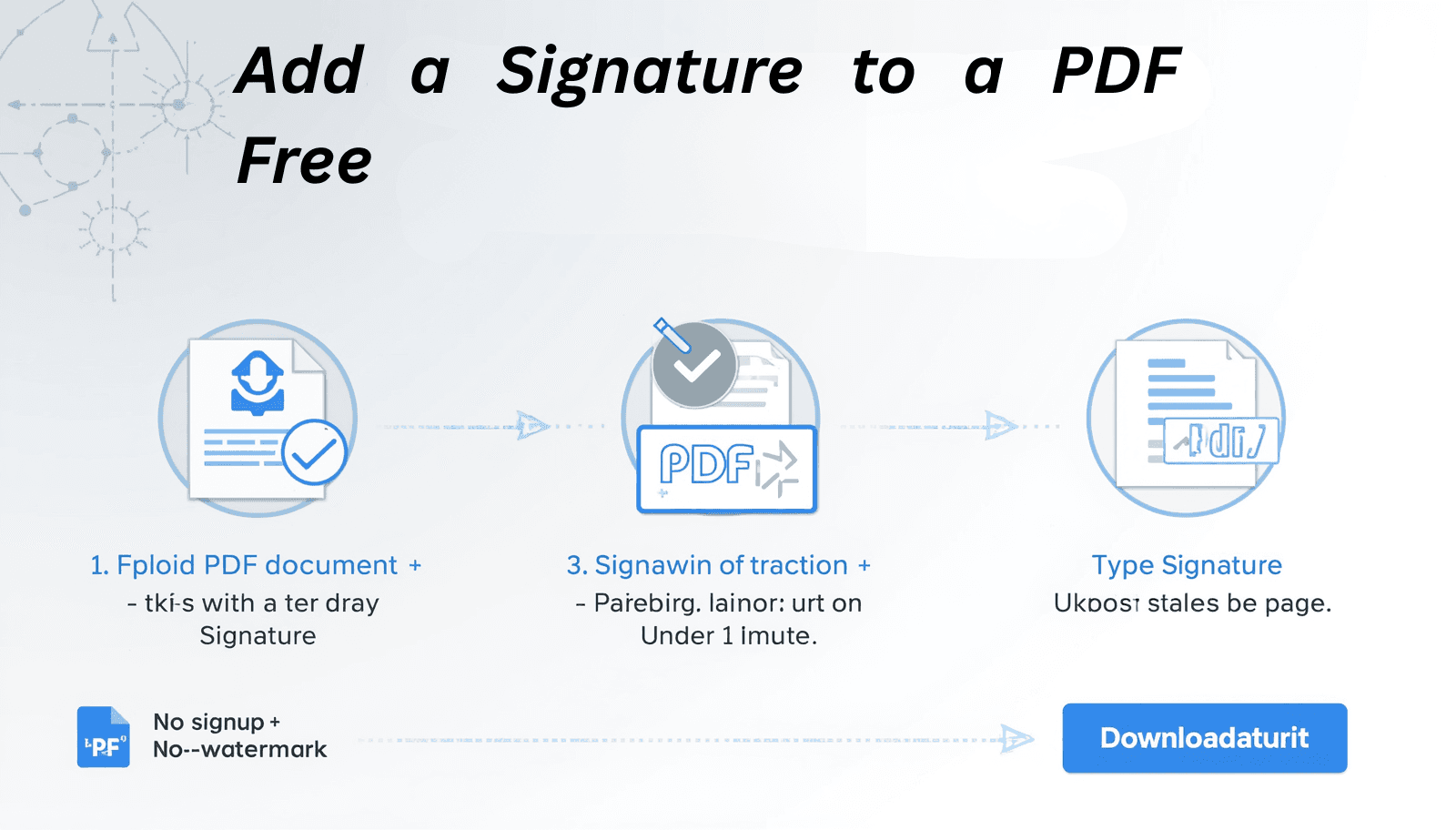
To add a signature to a PDF free online, upload your document to Transfonic's PDF Add Signature tool, create your signature by drawing, typing, or uploading an image, place it on the correct page, and download the signed file. No signup, no watermark, no software required — done in under a minute.
Signing a PDF used to mean printing the document, signing by hand, scanning it back, and emailing the scan. In 2026, that workflow is completely unnecessary. Electronic signatures are legally valid in the United States under the ESIGN Act, across Europe under eIDAS, and in most countries worldwide. You can sign any PDF directly in a browser — on desktop, tablet, or phone — in seconds.
This guide covers every method: adding a signature to a PDF free online, signing on Mac using Preview, signing on iPhone using Markup, signing on Windows, signing on Android, and the critical distinction between an electronic signature and a digital signature — which affects the legal weight of your signed document.
Sign your PDF now: PDF Add Signature tool — draw, type, or upload your signature and download the signed file in seconds. No signup, no watermark, no software required.
Electronic Signature vs Digital Signature — The Difference That Matters
Most people use these terms interchangeably but they mean fundamentally different things — and the distinction matters for legal and professional use.
Electronic Signature | Digital Signature | Which Do You Need? | |
What it is | An image or mark representing your signature | Cryptographic certificate verifying identity | Electronic for most everyday use |
How it looks | Your handwritten signature as an image | Same visual appearance | Identical to the signer |
Legal validity | Valid under ESIGN, eIDAS for most documents | Highest legal weight, tamper-evident | Digital for high-stakes legal contracts |
Technical requirement | No certificate needed | Requires a digital certificate | Electronic: no setup needed |
Best for | Everyday contracts, forms, approvals | Legal filings, regulated industries | 95% of use cases: electronic |
According to the U.S. Federal ESIGN Act, an electronic signature is legally equivalent to a handwritten signature for the vast majority of contracts and documents. For standard business agreements, employment forms, rental contracts, and personal documents, a drawn or typed electronic signature carries full legal weight.
The only situations where a basic electronic signature is insufficient are highly regulated contexts — certain government filings, notarized documents, court submissions in specific jurisdictions, and financial instrument transfers. For everything else, an electronic signature is valid, enforceable, and widely accepted.
How to Add a Signature to a PDF Online Free — Step by Step
Transfonic's PDF Add Signature gives you three ways to create your signature and place it anywhere on the document:
1. Open Transfonic's PDF Add Signature tool in your browser
2. Upload your PDF by clicking the upload area or dragging and dropping the file
3. Click the Add Signature button in the toolbar
4. Choose your signature creation method — draw, type, or upload an image
5. Draw: use your mouse, trackpad, or touchscreen to write your signature naturally
6. Type: enter your name and select from available handwriting-style fonts
7. Upload: import a PNG or JPG image of your handwritten signature
8. Click Apply to create your signature
9. Click on the page where you want to place the signature — it appears at that position
10. Drag to reposition and resize using the corner handles
11. Navigate to additional pages if you need to sign in multiple locations
12. Click Download to save your signed PDF
Your signature and the document are processed securely in your browser using Mozilla's PDF.js rendering technology. Files are automatically deleted after download — nothing is stored on any server. The signed PDF opens correctly in any standard viewer with the signature permanently embedded.
Three Ways to Create Your Signature — Which Is Best?
1. Draw Your Signature
Drawing your signature produces the most natural, personalized result — it looks exactly like your actual handwritten signature. Use a mouse for basic signatures, a trackpad for more natural curves, or a touchscreen with your finger or stylus for the most handwriting-like experience. If the first attempt is not clean, clear it and try again until you are satisfied.
Drawing is the best choice when the document requires a recognizable personal signature — contracts, legal agreements, authorization forms, and any document where the signature may be compared to an ID or other reference.
2. Type Your Signature
Typing your name and applying a handwriting-style font produces a clean, consistent signature that looks professional even if your handwritten signature is difficult to read. This method is particularly useful for users signing frequently from a keyboard, users with accessibility needs that make drawing difficult, and contexts where legibility matters more than exact handwriting replication.
Most signature tools including Transfonic offer multiple handwriting font styles to choose from — select the one that best matches the formality and character of the document being signed.
3. Upload a Signature Image
If you have an existing high-quality image of your handwritten signature — scanned from paper or photographed on a white background — you can upload it directly. This produces the most authentic representation of your actual signature and is consistent across every document you sign.
For the cleanest result when uploading a signature image, use a PNG file with a transparent background rather than a JPG on a white background. A transparent PNG means the signature blends naturally into the document page without a visible white rectangle around it. Most image editors including smartphone photo apps can remove the background from a signature scan.
How to Sign a PDF on Mac — Using Preview
Mac users can sign PDFs without any additional software using Preview, which has built-in signature capture and management.
As covered in Apple's official Preview documentation, Preview supports creating signatures from three sources: trackpad, camera, and iPhone or iPad via Continuity Camera:
Method 1: Trackpad Signature
13. Open your PDF in Preview
14. Click the Markup Toolbar button (pencil icon) or go to View > Show Markup Toolbar
15. Click the Signature button in the toolbar
16. Click Create Signature > Trackpad
17. Draw your signature on the trackpad using your finger — press any key when done
18. Click Done to save the signature
19. The signature appears in your signature list — click it to place it on the document
20. Drag to position and resize using handles
21. Save with Command+S
Method 2: Camera Signature
22. Go to the Signature button > Create Signature > Camera
23. Sign your name on a white piece of paper
24. Hold the paper up to your Mac's camera — Preview captures and converts it
25. Click Done when the capture looks clean
26. Place on the document as above
Method 3: iPhone or iPad via Continuity
On Macs running macOS Monterey or later, you can draw your signature on a nearby iPhone or iPad and it appears instantly in Preview on your Mac. This produces the most natural handwritten result since you are signing on a touchscreen with your finger — much more natural than using a mouse.
Managing Saved Signatures in Preview
Preview saves your signatures for future use — once created, they appear in the Signature menu every time you open the signature tool. You can store multiple signatures (personal, business, initials) and select the appropriate one for each document. To delete a saved signature, hover over it in the menu and click the X that appears.
How to Sign a PDF on iPhone and iPad
Method 1: Files App Markup
27. Open the PDF in the Files app on your iPhone
28. Tap the Share icon then Markup, or tap the pencil icon if it appears in the toolbar
29. In Markup mode, tap the + button at the bottom right
30. Choose Signature from the menu
31. Draw your signature with your finger on the screen
32. Tap Done
33. The signature appears on the page — drag to position and resize
34. Tap Done again to save
Method 2: Mail App
If you receive a PDF attached to an email, you can sign it directly in the Mail app without saving it first. Tap the attachment to open it, then tap the Markup icon in the toolbar. The full Markup suite including signature capture is available directly in the email attachment view.
Method 3: Browser-Based Tool in Safari
For the most complete signature options on iPhone — including uploading a signature image and precise positioning — open Transfonic's PDF Add Signature tool in Safari. The responsive mobile interface handles signature drawing, font selection, and image upload. Download saves the signed file directly to your device.
Apple Pencil on iPad
iPad users with Apple Pencil have the best mobile signing experience available. Apple Pencil's pressure sensitivity and precise tip produce handwritten signatures that are indistinguishable from pen on paper. Use the Files app Markup or any browser-based tool in Safari with Apple Pencil for the most natural result.
How to Sign a PDF on Windows
Microsoft Edge: Built-In Option
Microsoft Edge includes a basic drawing tool for PDFs — open the PDF in Edge, click the Draw button in the toolbar, and draw your signature using a mouse or touchscreen. However, Edge's drawing tool creates a freehand mark rather than a structured electronic signature — it is essentially drawing on the PDF rather than adding a signature field. For documents where the signature needs to look professional and positioned correctly, a dedicated tool gives better results.
Browser-Based Tool: Recommended for Windows
Open Transfonic's PDF Add Signature tool in Chrome, Edge, or Firefox on Windows. The draw, type, and upload options give full control over how your signature looks and where it is placed. The signed PDF downloads with the signature permanently embedded and displays correctly in any PDF viewer.
How to Sign a PDF on Android
35. Open Chrome on your Android device
36. Navigate to Transfonic's PDF Add Signature tool
37. Upload your PDF from local storage or Google Drive
38. Create your signature by drawing on the touchscreen — natural and precise on Android
39. Position the signature on the correct page
40. Download the signed PDF to your Downloads folder
Android does not have a built-in PDF signature tool in its default apps. Google Drive can open PDFs but does not support electronic signature creation. A browser-based tool in Chrome is the most reliable approach for signing PDFs on Android without installing any additional app.
How to Sign a PDF Without Printing It — Why This Matters
The traditional signing workflow — print, sign by hand, scan, email — wastes significant time and resources. For a single document it takes 5-10 minutes. For someone signing dozens of documents per week, it adds up to hours of unnecessary work.
Electronic signature tools eliminate every step of that process. Upload the PDF, sign it electronically, download the signed version — under one minute from start to finish. The signed file can be shared directly by email or link without any physical handling.
Beyond speed, electronic signatures eliminate the quality degradation that comes from scanning — a scanned signature document loses resolution with every print-scan cycle. An electronically signed PDF maintains perfect document quality regardless of how many times it is shared or archived.
Signature Placement Best Practices
Always sign on the designated signature line: if the document has a specific signature field or line, place your electronic signature aligned to it. Random placement looks unprofessional
Match signature size to the signature line: a signature that extends well beyond the line or is too small to be visible both look incorrect. Resize to fit proportionally
Add the date alongside your signature: most formal documents require both a signature and a date. Use the PDF Add Text tool to add the date next to your signature
Sign each page that requires it: multi-page contracts often have signature or initials fields on multiple pages. Check every page before downloading
Use initials for smaller fields: when a document has small initials fields alongside larger signature fields, create an initials version of your signature that fits the smaller space
Verify the signed document before sending: always open the downloaded signed PDF and check that the signature is correctly positioned, the right size, and visible on all required pages
Is My Electronic Signature Legally Valid?
For the vast majority of documents, yes. Electronic signatures have been legally recognized in the United States since the Electronic Signatures in Global and National Commerce Act (ESIGN Act) was signed in 2000. The European Union's eIDAS regulation provides equivalent recognition across EU member states. Most countries globally have established similar legal frameworks.
Documents where an electronic signature is legally valid include employment contracts and offer letters, rental and lease agreements, sales contracts and purchase orders, service agreements and NDAs, insurance forms and claims, bank and financial forms, medical consent forms, and most standard business agreements.
Documents where additional requirements may apply include real estate title transfers in some jurisdictions, wills and testamentary documents, court filings in specific jurisdictions, notarized documents, and highly regulated financial instruments. For these categories, consult the specific requirements of your jurisdiction before relying on an electronic signature alone.
Related PDF Tools for Complete Document Workflows
PDF Fill Form: fill in form fields alongside your signature. Many documents that require a signature also have text fields, checkboxes, and dates to complete. Fill all fields before signing for a complete, submission-ready document.
PDF Add Text: add typed text anywhere on the page. Use for adding your name in printed form, dates, job titles, or any text annotation that should accompany your signature.
PDF Highlight: highlight clauses or sections before signing. Review and mark important terms in a contract before adding your signature. See our complete guide on how to highlight text in a PDF.
PDF Draw: draw annotations, circles, or corrections on the document alongside your signature. See our guide on how to draw on a PDF.
PDF Add Watermark: add SIGNED, APPROVED, or CONFIDENTIAL watermarks to completed signed documents before distributing.
PDF Merge: combine multiple signed documents into a single file. See our complete guide on how to merge PDF files.
PDF to Word: If you need to edit the original text, clauses, tables, or layout before signing, use our guide on how to convert PDF to Word without losing formatting
Conclusion — Sign Any PDF in Seconds, Free, Any Device, Legally Valid
Adding a signature to a PDF in 2026 takes under a minute and requires no printing, scanning, or software installation. Draw your signature, type it, or upload a scan — place it anywhere on the document and download the signed file. The result is a properly signed PDF that is legally valid for the vast majority of documents worldwide.
The most important choice is not which tool to use — it is choosing the right signature type for the document. Drawn signatures for formal agreements where the signature may be referenced. Typed signatures for internal approvals and forms. Transparent PNG uploads for the most authentic and consistent result across all your documents.
Add your signature to any PDF now with Transfonic's free PDF Add Signature tool — draw, type, or upload your signature and download your signed document in seconds. No signup, no watermark, no software required.