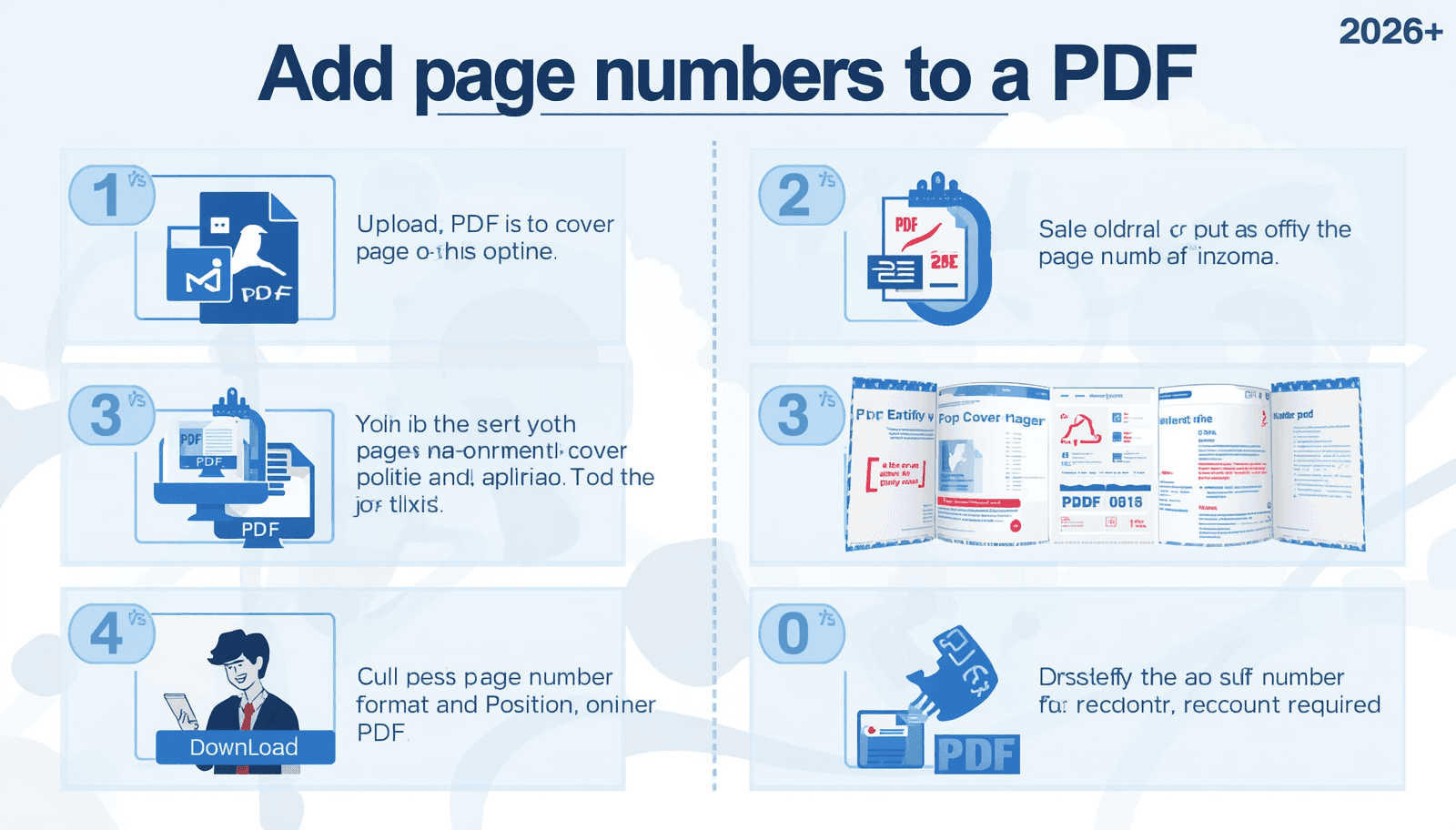
Adding page numbers to a PDF is straightforward — upload your PDF to a free online tool, choose your position and format, and download the numbered file in seconds. No software installation or account is required.
PDF files do not include page numbers by default. When you create or export a PDF from Word, Google Docs, or any other application, visible page numbers are only included if the source document had them. Adding page numbers after the fact requires a tool that embeds them as a proper layer within the PDF structure — not just a visual overlay that disappears in other viewers.
This guide covers every method: how to add page numbers to a PDF free online, how to skip the cover page, how to choose the right format (Arabic, Roman numerals, or Page X of Y), how to add a blank page or insert additional pages, and how to set up jump-to-page navigation for longer documents.
Try it now: Transfonic's free PDF Add Page Number tool — no signup, no watermark, results in seconds.
Why Page Numbers Matter More Than Most People Realize
Page numbers seem like a minor formatting detail. In practice, they have a significant impact on how a document functions and how it is perceived.
According to the PDF Association's document accessibility guidelines, consistent page numbering is one of the foundational requirements for accessible PDF documents — it enables screen reader users, keyboard navigators, and assistive technology to move through documents predictably. Documents without page numbers fail basic accessibility standards for professional and government use.
Beyond accessibility, page numbers serve several practical functions that directly affect how useful a document is:
Reference and citation — academic papers, legal documents, and reports all require page numbers for citations. A document without page numbers cannot be properly cited or referenced in professional contexts
Navigation in long documents — readers scanning a 50-page report need page numbers to locate sections, follow a table of contents, or return to a specific point
Print integrity — printed documents without page numbers lose their order the moment pages are separated or mixed up
Professional credibility — a proposal, report, or contract without page numbers signals incomplete preparation. Numbered documents look finished and authoritative
Legal compliance — many legal, government, and regulatory document formats require page numbers as a mandatory formatting standard
How to Add Page Numbers to a PDF Online Free: Step by Step
Transfonic's PDF Add Page Number tool handles the complete page numbering workflow in your browser. No installation, no account, no cost:
1. Open Transfonic's PDF Add Page Number tool in your browser
2. Upload your PDF by clicking the upload area or dragging and dropping your file
3. Select the position for your page numbers — header or footer, left, centre, or right aligned
4. Choose your number format — standard Arabic numerals, Roman numerals, or 'Page X of Y' format
5. Set the starting page number — choose whether to start from 1 or a custom number
6. Choose whether to skip the first page (cover page) — leave the cover unnumbered
7. Preview the result to confirm placement looks correct
8. Click Download to save your numbered PDF — page numbers are embedded and display in any PDF viewer
The entire process takes under two minutes for a standard document. Your file is processed securely in the browser and deleted automatically after download — nothing is stored on any server.
Modern browsers process PDF files natively thanks to open source rendering engines like Mozilla's PDF.js, which is why browser-based PDF tools like Transfonic work without any desktop software or plugin installation.
Page Number Position Options: Where Should Page Numbers Go?
Position is one of the most important decisions when adding page numbers to a PDF. The right position depends on the document type and how it will be used.
Position | Best For | Professional Standard? | Notes |
Footer center | Reports, academic papers, books | Yes — most common | Clean, unobtrusive, expected position |
Footer right | Business documents, proposals | Yes | Easy to locate when flipping pages |
Footer left | Legal documents, contracts | Sometimes | Less common but used in legal formats |
Header center | Manuals, guides, handbooks | Yes | Works well alongside chapter titles |
Header right | Corporate reports | Yes | Mirrors standard word processor default |
Header left | Technical documentation | Sometimes | Less common, used in specific style guides |
For most professional documents, the footer centre or the footer right is the safest choice. They follow the most widely recognised conventions and do not interfere with header content like document titles or chapter names.
Page Number Format Options: Which Format Is Right for Your Document?
Page number format communicates more than just the page count — it signals the document's structure and purpose to readers. Choosing the right format makes navigation clearer and presentation more professional.
Arabic Numerals (1, 2, 3...)
The default and most universally recognised format. Use for the main body content of any document — reports, proposals, guides, contracts. Clean, minimal, and expected by most readers.
Roman Numerals (i, ii, iii...)
Traditionally used for front matter — table of contents, preface, foreword, acknowledgements — before the main body content begins. Using Roman numerals for front matter and Arabic numerals starting from 1 for the body is standard in academic publishing, legal documents, and professional reports.
The W3C's WCAG PDF accessibility techniques document specifically addresses page labeling standards for PDFs — recommending that front matter use Roman numerals and body content use Arabic numerals to ensure consistent navigation for both sighted readers and assistive technology users.
Page X of Y (Page 1 of 24)
Shows both the current page number and the total page count. Particularly useful for long documents where readers benefit from knowing how far through the document they are. Common in business reports, legal submissions, and multi-part documents. Significantly improves the reader experience for documents over 20 pages.
Custom Format (Chapter-1, A-1, etc.)
Some documents use custom numbering prefixes for chapter-based or appendix-based pagination — for example, 1-1, 1-2 for Chapter 1, or A-1, A-2 for Appendix A. This format is standard in technical manuals, regulatory submissions, and multi-volume documents where sections need to be independently referenceable.
Bates Numbering
A specialised sequential numbering system used in legal and regulatory contexts — particularly for discovery documents, court filings, and compliance submissions. Bates numbers typically combine a prefix (case number or document code) with a sequential number: CASE001-0001, CASE001-0002. Each page receives a unique identifier regardless of document order, making large multi-document sets manageable and referenceable.
How to Skip the Cover Page and Start Numbering From Page 2
This is one of the most commonly needed but poorly documented features of PDF page numbering. Most documents have a cover page, title page, or table of contents that should not carry a page number, but the body content should start at page 1 rather than page 2.
There are two ways to handle this correctly:
Method 1: Skip First Page
The simplest approach — most page numbering tools, including Transfonic's PDF Add Page Number tool, allow you to skip the first page during numbering. The cover page is left unnumbered, and page numbering begins from page 2 of the document, displayed as '1'. This is the standard approach for single-cover-page documents.
Method 2: Set Custom Start Number
For documents where you want the cover page to count as page 1 in the sequence but not display a number — or where you need numbering to begin at a specific value other than 1 — set a custom start number. For example, if your document is the second chapter of a larger work that starts at page 47, you can set the start number to 47 so the numbering continues correctly across the full document.
Multi-Section Numbering (Roman + Arabic)
Professional documents often need different numbering formats for different sections. The standard approach is Roman numerals for front matter (table of contents, preface — pages i, ii, iii) and Arabic numerals starting from 1 for the body content. This requires either a PDF editor that supports section-based numbering or splitting the document into sections, numbering each separately, and merging them back together.
Transfonic's PDF Split tool and PDF Merge tool handle this workflow — split the document into front matter and body sections, number each separately with the correct format, then merge back into a single complete document.
How to Add a Blank Page to a PDF
Adding a blank page to a PDF is a common need — inserting a separator between sections, creating a blank back page for printing, adding space for handwritten notes, or preparing a document for double-sided printing where each chapter should start on an odd-numbered page.
Transfonic's PDF Reorder Page tool allows you to manage page structure before numbering. For inserting a blank page, the most reliable approach is to create a single-page blank PDF and then merge it into your document at the correct position using the PDF Merge tool before adding page numbers.
The workflow for adding a blank page before numbering:
9. Create or obtain a blank single-page PDF
10. Use Transfonic's PDF Merge tool to combine your document with the blank page at the correct position
11. Use the PDF Reorder Page tool to confirm the page order is correct
12. Then add page numbers to the complete merged document
This approach ensures the blank page is counted in the total page sequence and the numbering remains consistent throughout the document.
How to Add a Page to an Existing PDF Document
Adding pages to an existing PDF — whether inserting new content pages, appending additional sections, or inserting pages from another document — requires merging rather than direct editing.
The cleanest workflow uses Transfonic's PDF Merge tool to combine your existing PDF with the new pages you want to add. Upload both documents, arrange them in the correct order, and download the merged file. Once the complete document is assembled, add page numbers as the final step.
Important: always add page numbers after the document structure is finalised. If you add page numbers first and then insert or delete pages, the numbering will be incorrect and you will need to remove and re-add the numbers. Page numbering should always be the last formatting step before sharing or publishing.
If you need to remove pages from your PDF before finalisation, use Transfonic's PDF Delete Page tool to remove unwanted pages, then add page numbers to the clean final version.
How to Add Jump-to-Page Navigation in PDF Chapters
Jump-to-page navigation — where clicking a chapter title in the table of contents takes the reader directly to that page — is called PDF bookmarks or hyperlinks. This is different from visible page numbers but works alongside them to make long documents fully navigable.
PDF bookmarks are typically created at the time of document generation — from Word, InDesign, or other authoring tools — rather than added after the fact. However, there are two practical approaches for adding navigation to existing PDFs:
Using PDF Internal Links
Internal hyperlinks can be added to text elements in a PDF, pointing to specific pages within the same document. A table of contents entry for 'Chapter 3' can be linked to page 15, for example. This requires a PDF editor that supports adding hyperlinks to existing text.
Transfonic's PDF Add Text tool allows you to add text annotations to PDF pages. For basic navigation references — adding a 'Return to contents' note on each chapter opening page — this provides a lightweight navigation aid without full bookmark implementation.
Best Practice for Chapter Navigation
For documents that genuinely need chapter navigation, the most reliable approach is to add page numbers first, then build the table of contents manually referencing those page numbers. Readers can then use their PDF viewer's built-in 'Go to page' function — available in every standard PDF viewer — to jump directly to any referenced page.
Common Mistakes When Adding Page Numbers to PDFs
Adding page numbers before finalising the document: any subsequent page insertions, deletions, or reordering will make the numbers incorrect. Always number last
Not skipping the cover page: a page number on the cover or title page looks unprofessional and is rarely the intended result
Using the wrong format for the document type: Arabic numerals for a legal front matter section that should use Roman numerals signals unfamiliarity with professional document standards
Choosing a position that overlaps existing content: always check that the page number position does not sit on top of existing headers, footers, or page elements in your specific document
Not checking the output on multiple pages: preview several pages, including the first, last, and a middle page, to confirm numbers appear consistently
Using too large a font for page numbers: page numbers should be unobtrusive. A font size 2-4 points smaller than the body text is standard
Forgetting to number after merging: if you merge multiple PDFs after numbering them individually, the numbers from each document will conflict. Always merge first, number after
Related PDF Tools for Complete Document Preparation
PDF Merge: combine multiple PDFs into one complete document before adding page numbers. Essential for documents assembled from multiple source files.
PDF Reorder Page: reorder pages into the correct sequence before numbering. Drag and drop pages into the right order to ensure numbering flows correctly from start to finish.
PDF Delete Page: remove unwanted pages before finalising and numbering. Clean up the document structure first so numbering reflects the final page count.
PDF Split: split a document into sections for separate numbering (Roman numerals for front matter, Arabic for body) before merging back together.
PDF Add Watermark: add DRAFT, CONFIDENTIAL, or APPROVED stamps after page numbering is complete. The final presentation step for professional document distribution.
PDF Rotate: correct page orientation before adding page numbers to your PDF. If any pages are sideways or upside down, rotating them first ensures numbers are positioned correctly and the document reads cleanly from start to finish. See our full guide on how to rotate a PDF.
Working on a PDF that also needs annotation alongside page numbers? See our complete guides on how to highlight text in a PDF and how to draw on a PDF for the full annotation workflow.
Conclusion: Add Page Numbers to Any PDF in Seconds — Free, Any Format, No Software
Adding page numbers to a PDF does not require expensive software or complex configuration. Free browser-based tools handle the task reliably in seconds — with full control over position, format, starting page, and whether the cover page is numbered.
The details that separate a professional result from a basic one are not complicated: skip the cover page, choose the right format for the document type, add numbers after the document structure is finalised, and verify the output on multiple pages before sharing. Follow those four rules and the result looks intentional and polished.
Add page numbers to your PDF now with the PDF Add Page Number tool — upload your document, configure your numbering preferences, and download the finished file in seconds. No signup, no watermark, no software required.