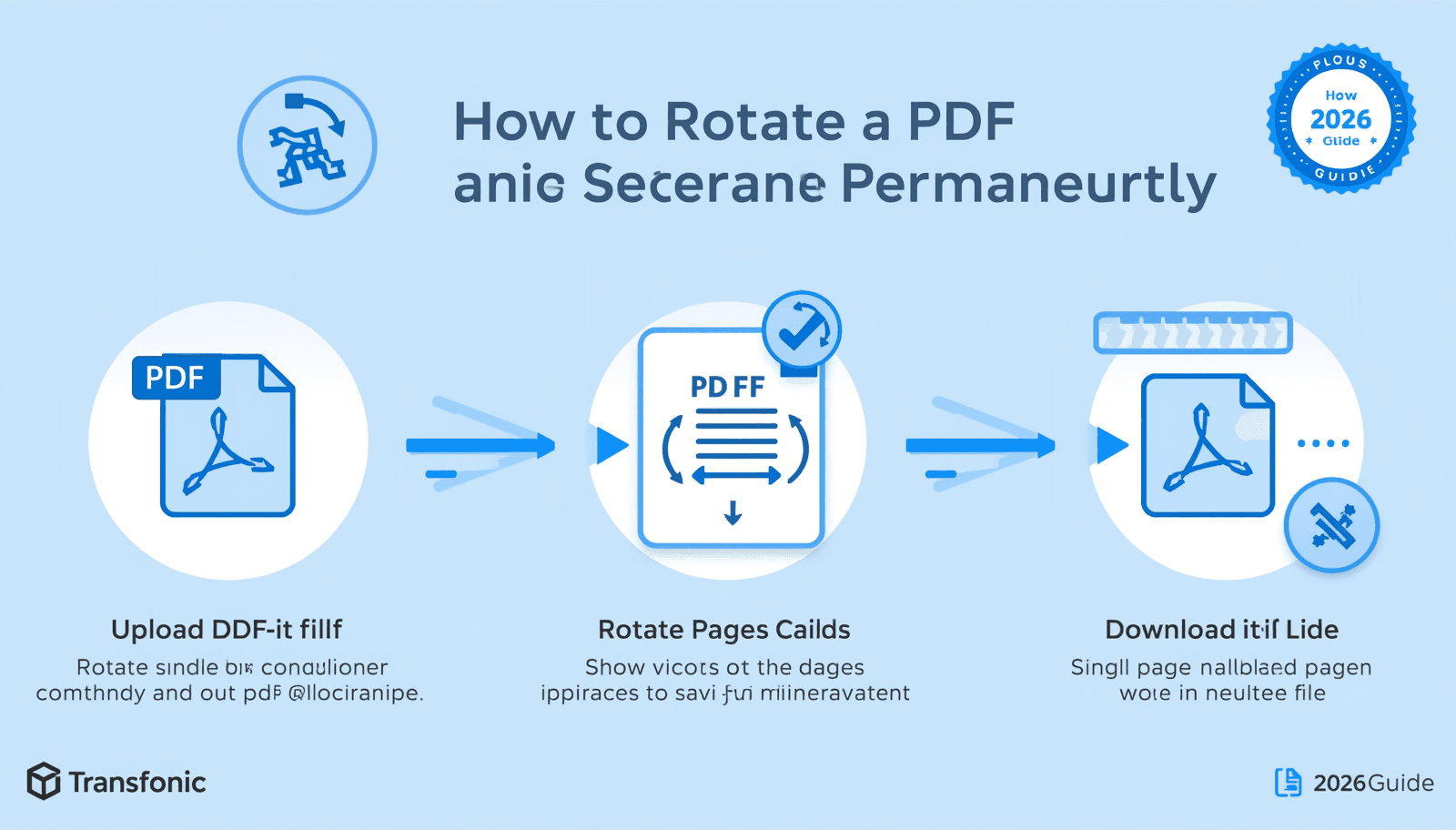
To permanently rotate a PDF, you need a tool that saves the rotation into the file itself — not just your viewer. Upload your PDF to Transfonic's free PDF Rotate Page tool, rotate the pages you need, and download the saved file. The rotation is embedded permanently and displays correctly in every PDF viewer.
This is the most important distinction in PDF rotation: most PDF viewers let you rotate the view temporarily on screen, but close the file and reopen it and it snaps back to the original orientation. That is because the viewer is only rotating your display — it is not changing the actual file. To permanently rotate a PDF, the rotation must be written into the document structure itself.
This guide covers every method: rotating all pages or a single page, saving the rotation permanently, rotating on Mac using Preview, rotating on iPhone and Android, rotating on Windows, and the most common reason your rotation keeps reverting — and how to fix it.
Rotate your PDF now: Transfonic's free PDF Rotate Page tool — permanently rotate any PDF page in seconds, no signup, no watermark, no software required.
Why Does My PDF Rotation Not Save? The Real Explanation
This is the number one frustration people have with PDF rotation — and almost no guide explains it clearly. You rotate the PDF in your viewer. It looks correct on screen. You close it. You reopen it. It is back to the wrong orientation. What happened?
According to the PDF Association's technical specification, PDF files store page orientation as a value in the page dictionary — a specific data structure within the file. When a PDF viewer rotates your view, it is applying a display transformation in memory without writing any changes back to the file on disk. The file itself is unchanged. This is intentional — PDF viewers are designed to display documents, not edit them.
There are three scenarios where rotation does not save permanently:
Your PDF viewer only rotates the display: the most common cause. Close and reopen the file and it reverts because the file was never actually modified
The PDF has security restrictions: some PDFs are locked against editing by the document creator. Even if you save the rotated view, the restriction prevents the change from being written into the file
You saved in the wrong format: some tools save the rotated view as a separate overlay rather than modifying the original page orientation value in the file structure
PDF accessibility and security standards that govern these restrictions are defined by the W3C PDF Accessibility Techniques — the same specification that outlines how PDF viewers should handle document permissions and editing rights.
The solution in every case is the same: use a dedicated PDF editing tool that writes the rotation value directly into the PDF page dictionary, then save and download the modified file. That is the only way to permanently rotate a PDF.
How to Rotate a PDF Online Free — Step by Step
Transfonic's PDF Rotate Page tool writes rotation directly into the PDF file structure — not just the display layer. Here is the complete workflow:
1. Open Transfonic's PDF Rotate Page tool in your browser
2. Upload your PDF by clicking the upload area or dragging and dropping the file
3. Your PDF opens with a page thumbnail view
4. Select the pages you want to rotate — click individual pages or select all
5. Choose your rotation direction — 90 degrees clockwise, 90 degrees counterclockwise, or 180 degrees
6. The rotation is applied and you can preview each page to confirm
7. Click Download to save your permanently rotated PDF
The rotation is saved directly into the file. Open the downloaded PDF in any viewer — Adobe Reader, Preview on Mac, a browser, a mobile app — and the correct orientation displays every time. Modern browsers handle PDF rendering using open source engines like Mozilla's PDF.js, which is why browser-based PDF tools like Transfonic can write permanent changes to PDF files without requiring any desktop software installation.
How to Permanently Rotate a PDF — What 'Permanent' Actually Means
A most common answer to these how-to questions is that people want to later open the file and have it displayed in the orientation they need, instead of rotating every time.
This is referred to as permanent rotation, meaning that the rotation value is written into PDF page dictionary — a data structure which defines all of the parameters of each page: its size, content, and orientation. If it has a validly written rotation value and any PDF viewer opens it, by default, this will display in the direction of that page. No re-rotation needed.
Temporary rotation — what most PDF viewers do — applies a display transform in memory only. It affects what you see on screen during that session. It does not touch the file. The moment you close the viewer, the transform is gone.
How to Verify Your Rotation Was Saved Permanently
8. Download the rotated PDF from your editing tool
9. Open the file in a completely different PDF viewer than the one you used to rotate it
10. If the file displays in the correct orientation without any additional rotation, the rotation was saved permanently in the file
11. If the file displays in the original wrong orientation, the rotation was only a display change and was not written to the file
This two-viewer test is the fastest and most reliable way to confirm permanent rotation. If it passes the test, the file is correctly saved.
How to Rotate a Single Page in a PDF
Rotating all pages in a PDF is straightforward. Rotating only specific pages — a single landscape page in an otherwise portrait document, a scanned page that came out sideways, or a diagram that was inserted in the wrong orientation — requires a tool that supports page-level selection.
PDF Rotate Page supports individual page selection. In the thumbnail view, click only the specific page you want to rotate, apply the rotation, and the other pages remain unchanged. This is the correct approach for:
A single scanned page that came out sideways in an otherwise correctly oriented document
A landscape-format chart or table inserted into a portrait document — rotate it to display correctly for the reader
A back-to-front page in a scanned multi-page document
A cover page with a different orientation from the body content
After rotating the specific page, always scroll through the entire document in the preview to confirm that only the intended pages were affected and all other pages remain in their original orientation.
How to Rotate a PDF on Mac — Using Preview
Mac users have a built-in option for PDF rotation: Preview, Apple's default PDF viewer, supports permanent page rotation and saves it correctly into the file.
Mac users have a built-in option for PDF rotation: Preview, Apple's default PDF viewer, supports permanent page rotation and saves it correctly into the file. For the official Apple walkthrough, see Apple's guide to rotating pages in Preview.
Rotate All Pages in Preview
12. Open your PDF in Preview
13. Select all pages in the sidebar: Command+A
14. Go to Tools > Rotate Left or Tools > Rotate Right (or use the keyboard shortcuts Command+L and Command+R)
15. All pages rotate 90 degrees in the selected direction
16. Save with Command+S — Preview writes the rotation permanently into the file
Rotate a Single Page in Preview
17. Open your PDF in Preview
18. In the sidebar, click the specific page thumbnail you want to rotate — do not select all
19. Go to Tools > Rotate Left or Rotate Right
20. Only the selected page rotates — all other pages are unchanged
21. Save with Command+S
Important: Use Command+S, Not Export
When saving rotated PDFs in Preview, always use Command+S to save directly. If you use File > Export as PDF, Preview may apply additional processing that can sometimes create inconsistency in how the rotation is stored. Direct save with Command+S writes the rotation value cleanly into the existing file structure.
Limitations of the Preview for PDF Rotation
Preview's rotation works reliably for most standard PDFs. However, PDFs with security restrictions, PDFs created with non-standard encoding, or very large scanned PDF files can sometimes cause Preview to save incorrectly or display a permissions error. For these cases, a browser-based tool handles the rotation more reliably.
How to Rotate a PDF on iPhone and iPad
iOS does not have a built-in PDF editor that supports permanent page rotation. The Files app and Safari can display PDFs, but cannot write rotation changes into the file structure.
Method 1: Browser-Based Tool in Safari
The most reliable approach on iPhone and iPad is to open Transfonic's PDF Rotate Page tool in Safari. The responsive interface works cleanly on mobile — upload your PDF, select pages, rotate, and download the permanently rotated file directly to your device. No app installation required.
Method 2: Files App Workaround
On iPad with a keyboard connected, you can open a PDF in the Files app markup view and rotate using the markup tools — but this only rotates the display annotation layer, not the underlying page. The file will revert when opened in another viewer. Use a browser-based tool for permanent results on iOS.
Saving the Rotated PDF on iPhone
22. After downloading the rotated PDF from Transfonic in Safari, tap the share icon
23. Choose Save to Files
24. Select your preferred location — iCloud Drive, On My iPhone, or a specific folder
25. The permanently rotated PDF is saved to your Files app and syncs across your Apple devices via iCloud
How to Rotate a PDF on Android
Android's built-in PDF viewer in Google Drive and the Files app supports display rotation but does not save it permanently into the file. For permanent rotation on Android:
26. Open Chrome on your Android device
27. Navigate to Transfonic's PDF Rotate Page tool
28. Upload your PDF using the file picker — Google Drive, local storage, and Downloads are all accessible
29. Select and rotate the pages you need
30. Download the rotated PDF — it saves to your Downloads folder automatically
31. Open the downloaded file to verify the rotation is permanently saved
The downloaded file is permanently rotated and displays correctly in any Android PDF viewer, including Google Drive, Samsung's PDF viewer, and third-party readers.
How to Rotate a PDF on Windows
Microsoft Edge — Built-In Option
Microsoft Edge can open PDFs and includes a basic rotation option in the toolbar. However, Edge's rotation is a display-only change in most cases — it does not reliably write the rotation permanently into the file. For permanent rotation on Windows, a dedicated tool is more reliable.
Browser-Based Tool — Recommended for Windows
Open Transfonic's PDF Rotate Page tool in any Windows browser — Chrome, Edge, or Firefox. Upload your PDF, rotate the pages, and download the permanently modified file. This approach works on any Windows version without installing any software and produces a correctly saved file that displays in the right orientation in every viewer.
Rotate PDF vs Flip PDF: What Is the Difference?
Action | What It Does | Common Use Case | Degrees |
Rotate clockwise | Turns page 90° to the right | Portrait page scanned sideways | 90° |
Rotate counterclockwise | Turns page 90° to the left | The landscape page is in the wrong direction | 90° |
Rotate 180° | Flips the page upside down | Upside-down scanned page | 180° |
Horizontal flip | Mirrors page left-right | Mirror image correction | N/A — reflection |
Vertical flip | Mirrors page top-bottom | Inverted scan correction | N/A — reflection |
Rotation and flipping are different operations. Rotation turns the page around its center point. Flipping creates a mirror image. For most scanned document correction needs, rotation is what you need — 90 degrees clockwise or counterclockwise fixes sideways pages, 180 degrees fixes upside-down pages.
Common Mistakes When Rotating PDFs
Rotating in the viewer and expecting it to save: the most common mistake. Viewer rotation is display-only. You must use a dedicated PDF editing tool and download the modified file for the rotation to be permanent
Not downloading the rotated file: Some tools apply the rotation in the browser session, but the change is lost if you close the tab without downloading. Always download immediately after rotating
Rotating the wrong direction: if a page is sideways, you need to determine whether it needs clockwise or counterclockwise rotation before applying. Preview the result before downloading
Rotating all pages when only one needs rotation: always select only the specific pages that need rotation. Rotating all pages when only one is wrong creates a new problem
Not verifying in a second viewer: always open the downloaded rotated PDF in a different application to confirm the rotation was saved permanently, not just in the tool you used
Ignoring security restrictions: if a PDF has editing restrictions set by the creator, rotation tools may not be able to write changes permanently. Contact the document creator for an unrestricted version
Related PDF Tools for Complete Document Management
PDF Reorder Page: reorder pages into the correct sequence alongside rotation. If scanned pages are both out of order and in the wrong orientation, fix the order first, then rotate.
PDF Delete Page: remove unwanted pages from your document. Use before rotating to clean up the document structure first.
PDF Merge: combine multiple PDFs into one. If you have rotated separate document sections, merge them into a single complete file after rotation.
PDF Split: split a large PDF into sections. Useful when only specific sections of a large document need rotation — split, rotate the relevant section, then merge back.
PDF Add Page Number: add page numbers after rotating and finalizing document structure. Page numbering should always be the last step.
Working on a PDF that also needs annotation? See our guides on how to highlight text in a PDF, how to draw on a PDF and how to add page numbers to a PDF for the complete PDF annotation and formatting workflow.
Conclusion: Rotate Any PDF Permanently — Free, Any Device, Saves Correctly Every Time
The confusion around PDF rotation almost always comes down to one misunderstanding: rotating the view in a PDF viewer is not the same as rotating the file. Close a viewer-rotated PDF and it reverts because the file was never changed. The only way to permanently rotate a PDF is to use a tool that writes the rotation into the file structure and then downloads the modified file.
Once you understand that distinction, the process is simple. The right tool takes under a minute — select your pages, choose your rotation direction, and download. The result opens correctly in every viewer, on every device, every time.
Permanently rotate your PDF now with Transfonic's free PDF Rotate Page tool — rotate single pages or all pages, download the permanently saved file in seconds. No signup, no watermark, no software required.