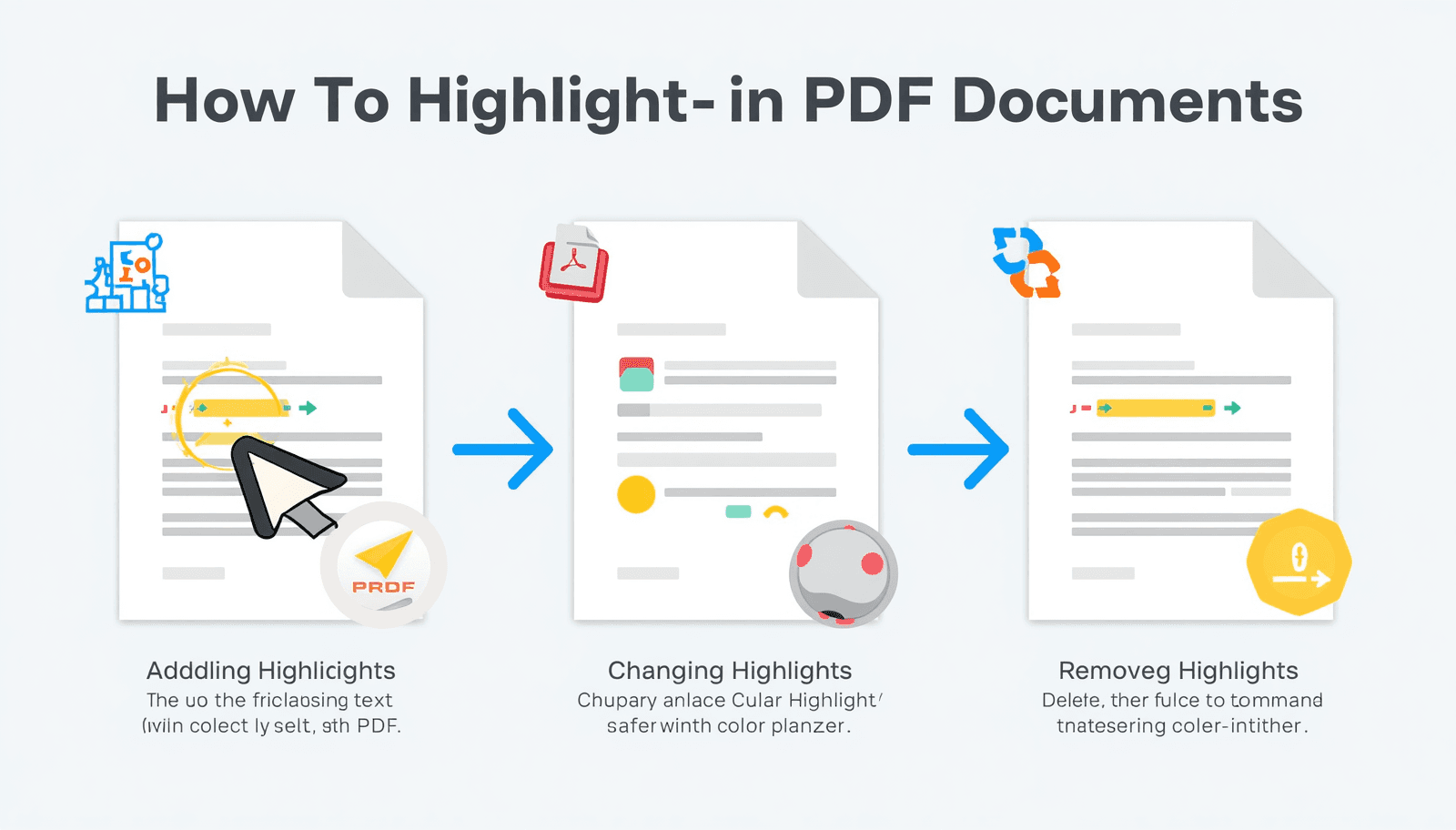
You are reading a PDF — a research paper, a contract, a study guide, a report — and you need to mark the important parts. Highlighting is the fastest way to do it. But unlike a Word document, PDFs are not designed for easy editing, and most tools that let you highlight them either require expensive software, a desktop installation, or a mandatory account signup.
This guide covers everything about highlighting in PDF: how to add highlights, how to change highlight colors, how to remove highlights you no longer need, and how to do all of it free in a browser without installing anything or creating an account.
Skip straight to the tool: Transfonic's free PDF Highlight tool — highlight any PDF online free, no signup, no watermark, no software required.
Why Highlighting PDFs Is More Complicated Than It Should Be
PDF (Portable Document Format) is a read-only, print-perfect document format that Adobe designed in 1993. They were supposed to, and it actually does very well in handling PDF documents as create such that they look in the same way on every device and printer. However, that design philosophy made editing in its core problematic.
To highlight text in a PDF, the tool needs to add an annotation layer on top of the existing document content — a separate layer that stores the highlight position, color, and any associated notes. This is why you cannot simply select text and press a highlight button in most PDF viewers, the way you can in a Word document. The tool needs to understand the PDF structure well enough to add, store, and save annotation data correctly. The PDF annotation standard is maintained by the PDF Association, which publishes the technical specifications that all compliant PDF tools must follow for annotations to display correctly across different viewers.
According to Adobe's official PDF documentation, PDF annotations, including highlights, are defined in the PDF specification as markup annotations — a standardized format that allows highlights to be saved within the document and read by any compliant PDF viewer.
The practical result: even highlights are defined in the PDF specification as markup annotations — this is an industry-standard, so that highlights could be stored inside the document and other compliant PDF viewers can read them.
How to Highlight Text in a PDF Online — Step by Step
Using the Transfonic pdf highlight tool, the process is straightforward and takes under a minute for a standard document:
1. Open Transfonic's PDF Highlight tool in your browser — no account required
2. Click the upload area or drag and drop your PDF file onto the page
3. Your PDF opens in the browser-based viewer
4. Select the text you want to highlight by clicking and dragging across it
5. Click the highlight button or choose your highlight color from the toolbar
6. The highlight is applied instantly to the selected text
7. Repeat for any additional text you want to highlight
8. Click Download to save your highlighted PDF — all annotations are preserved in the file
The entire process works in any modern browser on desktop, tablet, or mobile. Your PDF is processed securely and deleted automatically after you download — it is never stored on any server.
How to Highlight a PDF Document on Different Devices
How to Highlight in PDF on Windows
However, built-in Microsoft Edge on Windows acts as a PDF reader with support for basic highlighting. Highlight: Highlight text by selecting it, right-clicking and choosing Highlights. If you handle lots of colors and need to manage those annotations, a browser-based tool like Transfonic works on any Windows Browser (Chrome, Edge, Firefox or Opera) just by opening the online interface — no installation needed.
How to Highlight in PDF on Mac
For Mac users, Apple comes in with Preview, the default Mac PDF viewer, where you can highlight text, too. To highlight text in a PDF, open it in Preview, select the relevant section of text and use the Markup toolbar to apply the highlighting. It has instances for more color options and saves brightness directly into the PDF. This works in an external app and for PDFs opened in a browser, there is Transfonic's online tool, which applies the same functionality without swapping between apps.
How to Highlight a PDF on iPhone and iPad
The native PDF annotation features are really basic, but they're there on iOS in the Files app and Safari. Open a PDF, tap the markup icon, choose Highlight pen tool and draw over text. A browser tool available through Safari or Chrome on iOS provides more accuracy in terms of both text selection and colour, and is ideal for standard document sizes.
How to Highlight in PDF on Android
Android's built-in PDF viewer in Google Drive and the Files app supports basic highlighting. Open the PDF, long-press to select text, and look for a highlight option in the toolbar. For more complete annotation features, browser-based PDF tools work on Android Chrome without any app installation.
How to Highlight Text in PDF Without Adobe Acrobat
Adobe Acrobat is the most full-featured PDF editor available but costs $14.99-$23.99 per month — far more than most users need just to highlight text. Free alternatives that handle PDF highlighting reliably include browser-based tools like Transfonic, which provide the core annotation features without any subscription. For the vast majority of highlighting use cases — students, professionals marking up reports, researchers annotating papers — a free online tool is completely sufficient. Modern browsers can open and annotate PDFs natively thanks to open source rendering engines like Mozilla's PDF.js, which powers PDF viewing in Firefox and many browser-based PDF tools without requiring any external software.
How to Remove Highlights From a PDF
Removing a highlight from a PDF is just as important as adding one. Whether you highlighted the wrong text, want to clean up a document before sharing, or need to remove all annotations entirely, the process depends on how the highlight was added.
Removing Individual Highlights
In Transfonic's PDF Highlight tool, click on any existing highlight to select it, then press Delete or use the remove option in the toolbar. The highlight is removed from that specific text while all other annotations remain intact. Download the updated file to save the changes.
Removing All Highlights at Once
If you need to remove all highlights from a PDF — for example, when sharing a clean version of an annotated study document — most PDF editors have a 'flatten annotations' or 'remove all comments' option that strips every annotation layer from the document in one step.
Why You Cannot Remove Highlights From Some PDFs
Highlights added by a different tool or saved as flattened annotations may not be removable through standard annotation editing. Flattened highlights are merged directly into the page content layer rather than stored as a separate annotation layer, making them permanent. If you receive a PDF with permanently embedded highlights, removing them requires more advanced PDF editing — or working from the original un-highlighted source document.
PDF Highlight Colors: When and Why to Use Different Colors
Most PDF highlight tools support multiple colors — typically yellow, green, blue, pink, and orange at a minimum. Color-coding your highlights is one of the most effective ways to organize information in a long document:
Yellow: the default. Use for general importance or key points that do not fit another category
Green: use for definitions, terms, or factual information you need to remember
Blue: use for references, citations, or sections you need to follow up on
Pink/Red: use for critical information, warnings, deadlines, or action items
Orange: use for supporting evidence, examples, or secondary important points
For students working with textbooks and study materials, a consistent color-coding system makes review sessions dramatically more efficient — you can scan a document and immediately identify what type of information each highlighted section contains without re-reading.
Highlighting PDFs for Specific Use Cases
Students and Academic Research
Students highlight PDFs more than almost any other user group — textbooks, journal articles, lecture slides, and research papers all benefit from annotation. The most effective approach for academic use is to highlight sparingly — only the most essential points — rather than highlighting large portions of text. A document where 40% of the text is highlighted provides no navigational benefit. Aim for 10-15% highlighting density for maximum clarity during review.
Legal and Contract Review
Lawyers, paralegals, and contract managers use PDF highlights to mark key clauses, dates, obligations, and risk areas. Color coding by type of clause — red for risk, yellow for key dates, green for favorable terms — makes contract review more systematic and reduces the chance of missing important provisions.
Business Reports and Analysis
Analysts and managers highlighting business reports benefit from a different approach: use highlights to mark the findings and conclusions that will form the basis of a summary or presentation, rather than highlighting background context. When you return to the document later, highlighted sections should stand alone as the essential takeaways.
Medical and Scientific Literature
Researchers reviewing scientific papers typically highlight methods, results, and conclusions sections while leaving the introduction and discussion lightly annotated. Consistent highlighting conventions within a research team — agreed on before review begins — make collaborative annotation significantly more useful.
Before you start highlighting, it’s helpful to work only with the pages you actually need. You can split your PDF into separate pages so that important sections are easy to access. This saves time, keeps your annotations focused, and ensures a smoother workflow.
Other PDF Tools You Might Need
Highlighting is often just the start of working with a PDF. Transfonic's full PDF Reviewer suite covers every annotation and editing task in one platform:
PDF Add Text: add custom text annotations, notes, or labels anywhere on a PDF page. Useful for adding comments alongside highlighted sections.
PDF Draw: draw freehand annotations directly on PDF pages. Ideal for circling important diagrams, underlining, or adding arrows to highlighted sections.
PDF Add Signature: add your signature to a PDF by drawing or uploading an image. Works alongside annotation tools for signing reviewed documents.
PDF Insert Image: insert images into PDF pages. Useful for adding diagrams, stamps, or visual elements to annotated documents.
PDF Fill Form: fill form fields directly in PDF forms without printing. A common companion task to document review and annotation.
PDF Merge: combine multiple PDFs into a single document. Follow our full guide on how to merge PDF files for a step-by-step walkthrough. This is especially useful when consolidating highlighted research papers or annotated reports into one file.
PDF Search: search for words or phrases across all pages of a PDF. Helps locate specific content before highlighting or annotating.
PDF Add Page Numbers: add page numbers to your PDF after highlighting and annotating it. Useful when sharing reviewed multi-page documents — numbered pages make it easy for collaborators to reference specific sections. See our full guide on how to add page numbers to a PDF.
PDF Rotate: correct page orientation before highlighting your PDF. If a page is sideways or upside down, rotating it first ensures text selection works correctly and your highlights land in the right position. See our full guide on how to rotate a PDF.
Common Mistakes When Highlighting PDFs
Highlighting too much: when most of the document is highlighted, nothing stands out. Treat highlights as rare markers for the most essential content, not general interest
Not saving after highlighting: always download the updated file after annotation. Changes are not automatically saved to your original file
Using a tool that flattens annotations: if you might need to remove or edit highlights later, use a tool that saves them as a proper annotation layer rather than burning them into the page content
Highlighting scanned PDFs without OCR: if your PDF is a scanned image rather than a text-based PDF, text selection and highlighting will not work without OCR (optical character recognition) processing first
Sharing highlighted documents when a clean copy is needed: always check whether the recipient needs an annotated or clean version before sharing
Using different tools for the same document: highlights added by different tools sometimes conflict or display incorrectly. Stick to one tool per document for consistent annotation handling
Highlighting vs Other PDF Annotation Types: When to Use Each
Annotation Type | Best For | Permanent? | Transfonic Tool |
Highlight | Marking key text | No — editable | PDF Highlight |
Text note | Adding comments | No — editable | PDF Add Text |
Freehand draw | Circling, underlining | No — editable | PDF Draw |
Signature | Signing documents | Yes — permanent | PDF Add Signature |
Watermark | Branding, DRAFT marks | Yes — permanent | PDF Add Watermark |
Conclusion: Highlight Any PDF in Seconds — No Software, No Signup
You don't need expensive software, like Adobe Acrobat for Mac or a mean subscription to be able to highlight a PDF. By 2026, free browser-based tools will reliably annotate PDFs: Highlighting text with different colors (including none), removing annotations, and saving it as a properly formatted file for any PDF viewer.
The key is choosing a tool that handles the PDF annotation layer correctly, rather than flattening highlights permanently into the document. Proper annotation means highlights remain editable — you can add more, change colors, remove individual highlights, or strip all annotations before sharing a clean copy.
Highlight your PDF now using the PDF Highlight tool — upload your document, select your text, apply your highlight color, and download the annotated file in seconds. No signup, no watermark, no software required.