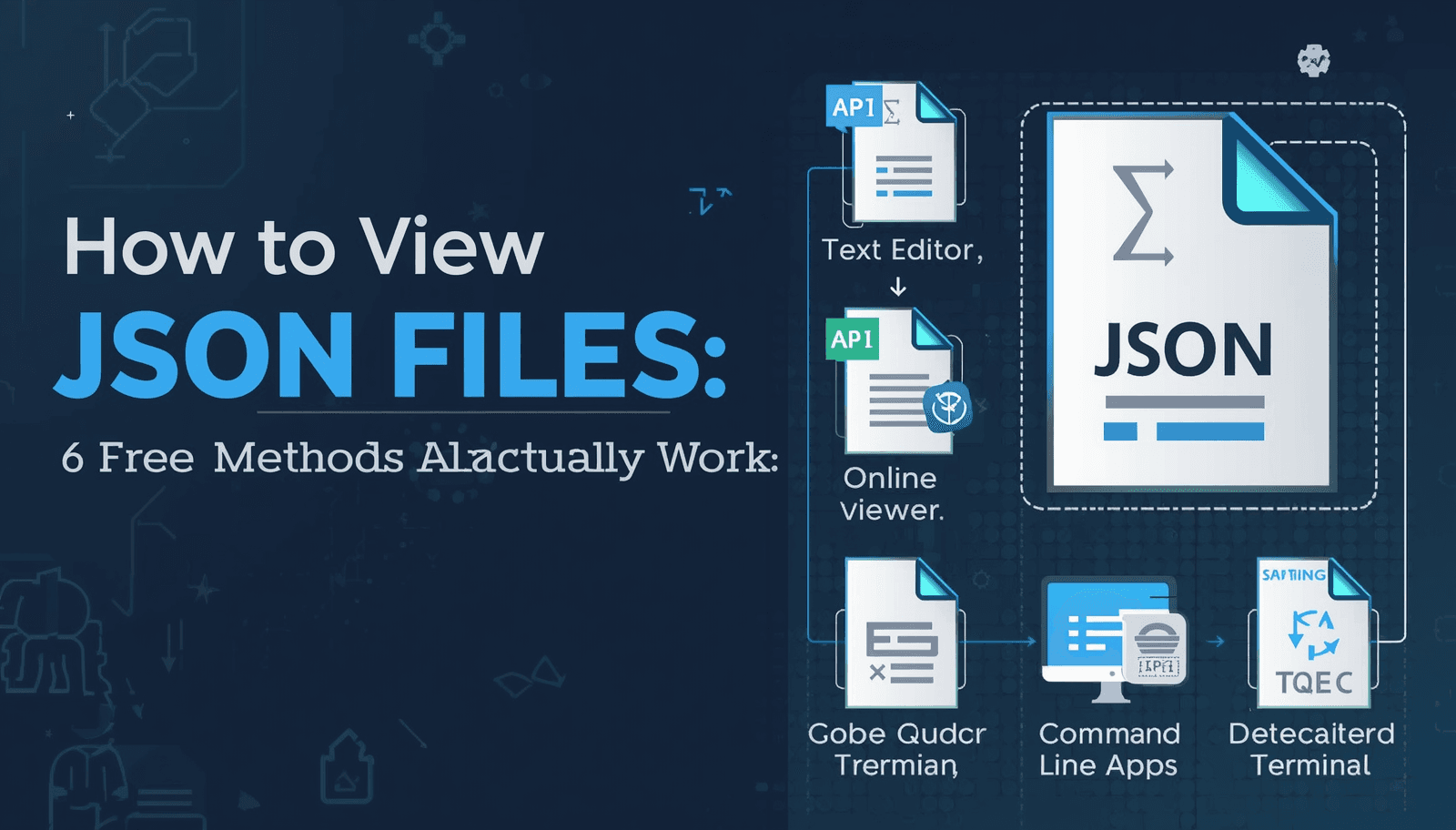
You downloaded an API response, received a configuration file, or exported data from a web app — and now you have a .json file sitting on your desktop with no obvious way to read it. You are not alone. JSON is now the most widely used data format on the web, powering everything from REST APIs to app settings to database exports.
The good news: viewing a JSON file requires no special software and takes less than a minute using the right method. This guide covers six proven ways to open and read JSON files, from a simple browser drag-and-drop to an online JSON viewer — covering every skill level and operating system.
What Is a JSON File and Why Is It Hard to Read Raw?
JSON (JavaScript Object Notation) is a plain-text format that stores data as key-value pairs, arrays, and nested objects. According to the MDN Web Docs, JSON was derived from JavaScript syntax but is language-independent — it is supported natively in Python, Java, PHP, Ruby, and virtually every other programming language in use today.
A JSON file appears humanly readable in theory — it is text after all. However, in the real world, most JSON files that you will come across are minified: all whitespace characters (spaces, line breaks and indentations) have been removed to create smaller file sizes. Instead of punctuation to delineate phrases and sentences and paragraphs, you get an oblique tubular mass that would be very difficult to trace through the eye.
Here is what a simple minified JSON file actually looks like when you try to open it in Notepad:
{"name":"Alice","age":30,"skills":["Python","SQL"],"address":{"city":"London","country":"UK"}}
And here is what that same file looks like once properly viewed with indentation and formatting:
{ "name": "Alice", "age": 30, "skills": ["Python", "SQL"], "address": { "city": "London", "country": "UK" } }
The difference is the reason viewing JSON correctly matters. If your JSON file also has formatting or syntax issues, you should format it first before trying to read it.
Method 1: View JSON Online — Fastest Option, No Installation
An online JSON viewer is the fastest and most convenient option for many. You paste or upload your file, and the tool immediately renders it as a neat, indented, color-coded tree with collapsible sections.
This is handled directly in your browser by Transfonic’s free JSON Viewer Online — no signup, no installation, no data ever leaving a server. Your file is handled completely on your device.
How to view a JSON file online:
1. Open the JSON Viewer Online tool in your browser
2. Paste your JSON content directly into the input area, or upload your .json file
3. The tool formats and renders it instantly with syntax highlighting and tree navigation
4. Use the collapsible nodes to explore nested objects and arrays without losing context
This is the best option for: quick checks, sharing JSON with a non-developer colleague, or working on a machine where you cannot install software.
Method 2: View JSON in VS Code — Best for Developers
There is a reason why Visual Studio Code it the most popular code editor in the world Its native JSON rendering includes syntax highlighting, automatic indentation, error detection and collapsible tree node support — with no plugins.
How to view a JSON file in VS Code:
5. Open VS Code and go to File > Open File
6. Select your .json file
7. VS Code opens it with automatic syntax highlighting
8. If the file is minified, press Shift+Alt+F (Windows) or Shift+Option+F (Mac) to auto-format it
9. Click the triangles next to objects and arrays to collapse or expand sections
VS Code also validates your JSON as you view it. If there is a syntax error — a missing comma, an unclosed bracket, an extra quotation mark — VS Code underlines it in red and shows the exact line number. This is especially useful when debugging API responses or configuration files in production environments.
The official VS Code documentation states that the editor supports JSON Schema validation, meaning that it can also validate your JSON against a known structure and alert you when required keys are missing or values are of the wrong type.
Learn more about how Visual Studio Code handles JSON files.
Method 3: View JSON in Your Web Browser — No Download Needed
Every modern browser — Chrome, Firefox, Edge, Safari — can open a JSON file directly. The experience varies by browser, but it works instantly without any setup.
Firefox
The best JSON viewer built into any browser — Firefox. It has the ability to do the same with either an unformatted view or a color-coded tree display with a search box. When you open any JSON file in Firefox, it does so by default. There is nothing to install.
Chrome
The default display of raw JSON in Chrome is not easy to read. Additionally, you can format the response with the JSON Formatter or JSONVue extension from the Chrome Web Store. Once it is installed, Chrome formats any JSON file or API response that you open automatically.
How to open a JSON file in your browser (any browser):
10. Open your browser
11. Drag and drop the .json file into an open browser tab
12. Or press Ctrl+O (Cmd+O on Mac) and select the file
This method is ideal for quickly checking a downloaded file without opening a code editor or switching tabs.
Method 4: View JSON in Notepad or TextEdit — Simple but Limited
Since JSON is plain text, any text editor can open it. On Windows, Notepad works. On Mac, TextEdit works. There is no formatting, no syntax highlighting, and no tree navigation — but it gets the job done for small, already-readable files.
On Windows:
• Right-click the .json file
• Select Open with > Notepad
On Mac:
• Right-click the .json file
• Select Open With > TextEdit
This limitation is obvious: If your JSON was minified (one long line), Notepad shows it as such — one long and unreadable line. Use one of the other methods for anything other than simple five-key objects.
For Windows, a good choice is free Notepad++, which has syntax highlighting plus a JSON Viewer plugin for tree traversal. Mac: On Mac, BBEdit or CotEditor are worthy free upgrades from TextEdit.
Method 5: View JSON Using the Command Line — Best for Large Files
For JSON files larger than 100MB — which isn’t unusual with database exports, analytics dumps, or API logs — trying to open them in a text editor or browser will crash the application, or take several minutes to load. Most of the time, big files are not a problem for the command line, because it will provide you with content as a stream without loading everything to memory.
The best command-line tool for viewing JSON is jq — a lightweight, open source JSON processor that runs on Windows, Mac, and Linux.
Basic jq commands:
# Pretty-print a JSON file jq '.' data.json # View just the keys at the top level jq 'keys' data.json # Extract a specific value jq '.name' data.json # View first item in an array jq '.[0]' data.json
On Mac, install jq via Homebrew: brew install jq. On Windows, download the binary directly from the official jq GitHub repository. On Linux (Ubuntu/Debian): sudo apt install jq.
For files too large even for jq, the ijson Python library supports streaming parsing — processing records one at a time without loading the full file into memory. This is the standard approach for production data pipelines handling multi-gigabyte JSON exports.
Method 6: View JSON Using Python — Programmatic Access
If you need to view, inspect, or process JSON data programmatically — not just read it once — Python is the cleanest option. Python's built-in json module handles loading, parsing, and pretty-printing JSON files with just a few lines of code.
import json with open('data.json', 'r', encoding='utf-8') as f: data = json.load(f) # Pretty-print to terminal print(json.dumps(data, indent=2)) # Access a specific value print(data['name']) # List all top-level keys print(list(data.keys()))
Always use the explicit encoding='utf-8' argument in open(). The most common cause of character corruption, which manifests as question marks or scraped text where characters -- such as names with the French accent aigu -- should appear on Windows systems, is to omit this.
If you want to have in-depth details on how reading and writing work with JSON data in Python, the official documentation of the json module describes all parameters and edge cases.
For an in-depth guide to Python’s JSON module, visit the official Python documentation.
Quick Comparison: Which Method Should You Use?
Method | Best For | Skill Level | Works Offline? | Free? |
Online viewer (Transfonic) | Quick reads, sharing | Beginner | No | Yes |
VS Code | Daily dev work | Developer | Yes | Yes |
Web browser | Fast preview | Beginner | Yes | Yes |
Notepad / TextEdit | Small flat files | Beginner | Yes | Yes |
Command line (jq) | Large files | Intermediate | Yes | Yes |
Python | Automation, parsing | Developer | Yes | Yes |
Common Mistakes When Viewing JSON Files
Opening a minified file in Notepad and giving up: Minified JSON is intentionally compressed. Stick it into an online formatter or use the format shortcut from within VS Code — the structure is valid, just squished.
Confusing a JSON file with a JSONL file: JSONL (JSON Lines) files contain one JSON object for each line. These may not be correctly handled by standard JSON viewers. Look for. jsonl extension or multiple top-level objects on the file.
Assuming the file is broken when it will not open: Some JSON files returned from APIs have a BOM (Byte Order Mark) at the beginning of the file, leading to garbage characters in some editors. VS Code & online Viewers handle this by default.
Not validating before investigating: When you check your JSON file and it seems incorrect — missing data, unexpected structure — before working through a tool problem, ensure that the issue is not a syntax error in your file.
If you're unfamiliar with JSON structure, learn more about what JSON is to better understand its components and avoid mistakes.
Related Transfonic JSON Tools
Depending on what you need to do with your JSON file after viewing it, these tools handle the next steps without leaving your browser:
JSON Formatter: Beautify and indent raw or minified JSON instantly.
JSON to CSV Converter: Convert JSON data into a spreadsheet-ready CSV file.
JSON Parsing Tool: Extract specific values and data points from complex JSON structures.
Editor JSON: View and edit JSON in a structured browser-based editor.
Conclusion
Once you know which tool for the scenario, viewing a JSON file is easy. If you want to read without any setup, an online JSON viewer is the quickest — just paste your content and it’ll render immediately. Daily developer work is done in VS Code with built-in validation and syntax highlighting. If you need to deal with big files, jq or Python are solid pro tools.
If your JSON file needs formatting before you can read it properly, Transfonic's free JSON Viewer Online handles both steps in one place — open it, paste your content, and get an instant, formatted, color-coded view with no signup required.