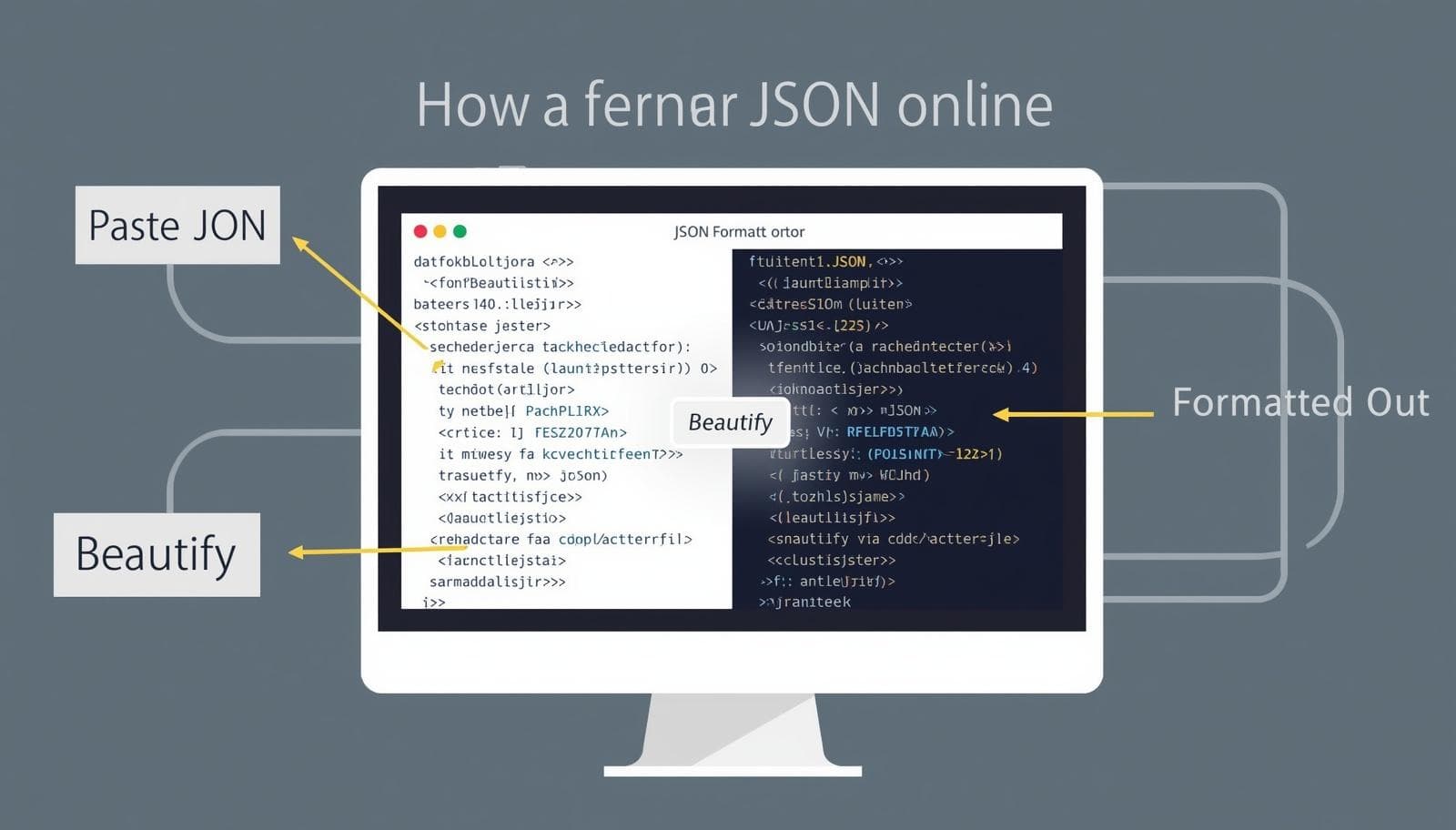
Whether you're a developer debugging an API response or a data analyst cleaning up an export, poorly formatted JSON slows everything down. This guide shows you exactly how to format JSON online — free, instant, and without installing anything — using Transfonic's JSON Formatter.
What Is JSON Formatting?
JSON (JavaScript Object Notation) is a lightweight, text-based data format used to store and exchange structured data across the web. When JSON arrives from an API or database, it's often compressed into a single unreadable line — formatting restructures it with proper indentation and line breaks so humans can read, edit, and debug it easily.
Formatting JSON is not just about aesthetics. Clean, well-structured JSON reduces syntax errors, speeds up debugging, and makes code reviews significantly faster — especially in team environments handling large payloads.
JSON Formatter vs JSON Beautifier vs JSON Minifier: What's the Difference?
These three terms are closely related but serve different purposes:
Tool | What It Does | When to Use |
JSON Formatter | Restructures JSON with proper indentation and line breaks | Reading and editing raw JSON |
JSON Beautifier | Same as formatter — pretty-prints JSON for human readability | Code reviews, debugging |
JSON Minifier | Strips all whitespace to compress JSON into one line | Production deployments, reducing payload size |
JSON Validator | Checks JSON syntax for errors without reformatting | Before deploying or sending JSON to an API |
Most online tools — including Transfonic — combine all four functions in one place. You can beautify, minify, and validate JSON without switching between different tools.
How to Format JSON Online: Step by Step
Transfonic's JSON Beautifier works entirely in your browser — no signup, no software, no watermark.
Step 1: Access the JSON Beautifier. Visit Transfonic's JSON Beautifier online at the following URL.
Step 2: Input Your JSON. Paste the JSON string you want to format into the text input box provided. Any valid JSON format can be used.
Step 3: Choose an Action. Select one of three options:
Beautify: formats JSON with clean indentation (2 or 4 spaces)
Minify: Flattens the JSON structure into a single line format
Validate: Scans for JSON Syntax Errors and provides line and character location of errors
Step 4: Review the Output. Your JSON code will be displayed immediately in the results box.
The JSON formatter displays the JSON keys with color-coding, nested JSON structures with indentation, and any syntax errors will be highlighted.
Step 5: Copy or Download. Copy the formatted JSON to your clipboard with one click, or download it as a .json file. No account needed — your file is processed in the browser and never stored.
Real-World Use Cases
JSON formatting is used across industries daily. Here's where it matters most:
Front-end developers: formatting REST API responses from endpoints to understand data structure before building UI components
Back-end engineers: compressing JSON test fixtures with a minifier before committing to CI/CD pipelines to reduce repo size
QA engineers: validating large JSON payloads before integration testing to catch syntax errors early
Data analysts: cleaning JSON exports from databases or BI tools before feeding them into Python or Excel pipelines
E-commerce teams: formatting product catalog JSON from Shopify or WooCommerce APIs for clean data imports
DevOps engineers: validating JSON configuration files (Docker, Kubernetes, AWS Lambda) before deployment to prevent runtime failures
How to Validate JSON — Catch Errors Before They Break Your App
Validation is the most critical step in JSON formatting. A single syntax error that violates the ECMA-404 JSON specification can crash an API call, break a configuration file, or corrupt a database import. Transfonic's JSON Validator catches every error instantly. Most Common JSON Errors: These are the errors developers encounter most often:
Trailing commas: adding a comma after the last item in an array or object (not allowed in standard JSON)
Single quotes: using 'key' instead of "key" — JSON requires double quotes for all strings
Unquoted keys: writing {name: "John"} instead of {"name": "John"}
Missing commas: forgetting commas between key-value pairs
Incorrect values: using undefined, NaN, or Infinity, which JSON does not support; use null instead
Wrong boolean/null casing: True, False, NULL are invalid; JSON requires lowercase true, false, null
Example — Invalid vs Valid JSON
json
// ❌ Invalid JSON
{
'name': 'Transfonic',
'type': 'converter',
'free': True,
}
// ✅ Valid JSON
{
"name": "Transfonic",
"type": "converter",
"free": true
}
Paste either version into Transfonic's JSON Validator and it will highlight the exact line causing the error.
How to Minify JSON — Reduce File Size for Production
JSON minification removes all unnecessary whitespace, line breaks, and indentation — compressing your formatted JSON into a single line. This reduces file size and speeds up data transmission between servers and clients. Use Transfonic's JSON Minifier to compress any JSON file instantly. A typical formatted JSON file can shrink by 20–30% after minification — meaningful savings at scale for high-traffic APIs.
When to Minify vs When to Beautify
Scenario | Use |
Reading or debugging JSON | Beautify |
Sending JSON via API in production | Minify |
Writing JSON config files | Beautify |
Reducing network payload size | Minify |
Code reviews and pull requests | Beautify |
Common JSON Formatting Mistakes to Avoid
Even experienced developers make these mistakes:
Formatting without validating first: always validate before beautifying to avoid masking the original error location
Using a text editor instead of a dedicated tool: editors like Notepad++ require plugins; browser-based tools like Transfonic work instantly with no setup
Minifying JSON you still need to read: keep a beautified copy for development and only minify for production builds
Ignoring nested structure depth: deeply nested JSON (5+ levels) is valid but hard to maintain; consider flattening where possible
Copy-pasting JSON with invisible characters: some tools insert invisible Unicode characters that break JSON parsers; Transfonic's validator catches these automatically
Related Transfonic Tools
Once your JSON is formatted and validated, you may need to convert it into other formats for reporting, spreadsheets, or data pipelines:
JSON to CSV Converter: export JSON data as a CSV file for Excel or Google Sheets
CSV to JSON Converter: convert spreadsheet data back into JSON format
JSON to XLSX Converter: export JSON directly as an Excel file
JSON to PDF: generate a PDF report from your JSON data
All tools are free, browser-based, and require no signup.
Conclusion
Proper formatting of JSON will save you a lot of time spent on debugging, avoid potential issues when deploying and make cooperation more convenient. No matter whether you want to format a JSON output from an API response, validate a configuration file prior to deployment, or compress JSON for your production environment, Transfonic has you covered. Try out JSON Formatter now.
Try Transfonic's JSON Formatter now — paste your JSON and get clean, validated output in seconds.