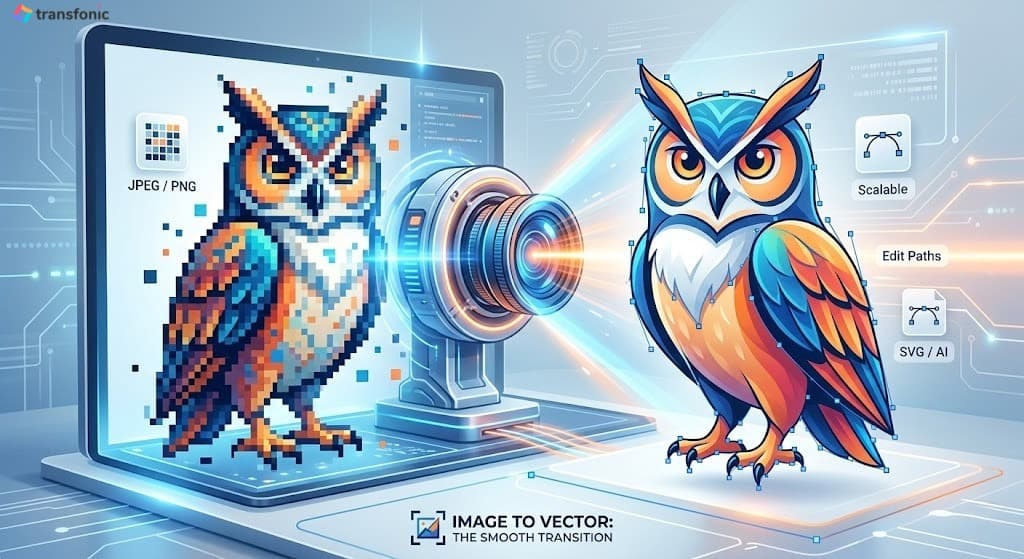
Pixel images break when you scale them. Vector graphics never do. If you have ever zoomed into a logo and watched it blur into a smudge of colored squares, you already understand the problem that image-to-vector conversion solves.
This guide covers everything you need to know: what vector graphics are, why they matter, who needs them, and how to convert any raster image — JPEG, PNG, BMP — into a clean, scalable SVG file in seconds using Transfonic's free Image Vectorizer. No software downloads, no account required.
What Does Image to Vector Actually Mean?
A raster image (like a JPEG or a PNG) is made up of a grid of pixels. Each pixel is stored with a color (the values), and together it floats the image you see. And the issue is, pixels are static. This is because when you scale up a raster image beyond its original resolution, the software can only interpolate — guess — what the missing pixels look like. The result is blurriness, jagged edges and visible pixelation.
Image Vectorizer is the process of taking a raster image and tracing its shapes, edges, and colors into these mathematical paths. The resulting file is called a vector graphic, most commonly saved in SVG (Scalable Vector Graphics) format, though EPS and DXF are also widely used in specific industries.
Raster vs Vector: Understanding the Core Difference
Raster Images (JPEG, PNG, BMP, GIF)
Raster images are resolution-dependent. Their quality is determined at the moment they are created or exported. Scaling them up degrades quality; scaling them down discards data permanently. Raster formats are ideal for photographs and complex imagery where color gradients and fine detail are paramount.
Vector Images (SVG, EPS, AI, DXF)
Vector images are resolution-independent. They have no pixels — only mathematical descriptions of shapes. A vector logo will render at 16 pixels for a browser favicon or 3 meters wide for an exhibition banner to exactly the same look. Vector Formats vector formats are great for logos, icons, illustrations, typography, and any design that must be reproduced at different sizes.
Key Differences at a Glance
Scalability: Raster images degrade when enlarged; vector images scale infinitely without quality loss
File format: Raster = JPEG, PNG, BMP, GIF; Vector = SVG, EPS, AI, DXF
Best for: Raster = photographs; Vector = logos, icons, illustrations, print assets
Editability: Raster pixels are fixed; vector paths can be freely reshaped and recolored
File size: Raster files grow with resolution; vector files stay small for simple shapes
Print readiness: Raster requires high DPI for quality print; vector is always print-ready
Who Needs Image to Vector Conversion?
Graphic designers, brand managers, print shops, e-commerce sellers, content creators, and developers all regularly need vector files. The specific scenario changes but the core problem is always the same: a raster source image that cannot do what the project requires.
Graphic Designers and Brand Agencies
Clients often send logos as JPEG or PNG files — low res, sometimes scanned from a business card. These files will need to be traced and converted to SVG in order to be usable in any professional design workflow. A vector, however, can be applied to any background, resized to any dimension, and edited at the path level without ever having to return to the client for a new file.
Print and Packaging Professionals
Vector files are required for commercial print production. Whether the output is a business card, a banner, packaging, or a vehicle wrap, print shops are going to want SVG or EPS files that will reproduce crisply at the desired size. You will literally never submit a raster image to a print shop and they will not reject the file or it will turn out blurry. First, converting to a vector removes this issue altogether.
E-commerce Sellers and Product Designers
Vendors on sites like Etsy, Redbubble, or even Amazon Merch require vector data for print-on-demand goods such as shirts, cups, decals and phone cases. You will need to upload an SVG file with designs for most of your print fulfillment partners. For this reason, one of the most common things you need to do in a print-on-demand workflow is convert artwork from PNG to SVG.
Web Developers and UI Designers
SVG files are the standard format for icons, logos, and interface graphics on the web. Unlike JPEG or PNG images, SVGs are written in XML and can be rendered by any browser at any size without quality loss. They are also significantly smaller in file size for simple graphics, improving page load performance — a measurable SEO factor.
Crafters and Cutting Machine Users
SVG file – These are files that Cricut, Silhouette, and other cutting machines use to cut out shapes. Cutting machine software is not able to load a PNG image directly — it needs to be vectorized first. One of the most searched tasks among crafters / DIYers is to convert them to SVG.
How to Convert an Image to Vector Online — Step by Step
The fastest way to convert a raster image to a vector without software is using Transfonic Image Vectorizer. It runs entirely in your browser — no installation, no account, no cost.
Step 1: Prepare Your Source Image
Begin with the best that you can find of your image. Logos, icons, line art and illustrations yield the best vectorization results by their nature: they arehigh contrast images with clear edges. Try to remove the background ahead of converting, if possible. On a white or transparent background, the vectorizer has cleaner lines to trace with isolated subjects.
Step 2: Open the Image Vectorizer
Navigate to image-vectorize. No sign-up is required. The tool opens immediately in your browser.
Step 3: Upload Your Raster Image
Drag and drop your JPEG, PNG, or BMP file into the upload area, or click to browse your device. Transfonic supports batch processing so you can convert multiple images in the same session.
Step 4: Download Your SVG File
Once the conversion is complete, download your SVG file directly to your device. The file is ready to use in any design application, web project, or print workflow. Transfonic automatically deletes all uploaded files after processing — your data is never stored long-term.
What Types of Images Convert Best to Vector?
Not all images are equal candidates for vectorization. Understanding which source files produce clean results and which do not saves time and sets realistic expectations.
Images That Vectorize Well
Logos and wordmarks: flat colors, clean edges, simple shapes
Icons and symbols: minimal detail, high contrast
Line art and sketches: strong outlines with clear boundaries
Illustrations: hand-drawn or digital artwork with defined color areas
Silhouettes: single-color shapes with no internal detail
Scanned drawings: pencil or ink sketches on white paper
Images That Are Difficult to Vectorize
Photographs: complex color gradients and fine detail do not trace cleanly
Low-resolution or blurry images: the vectorizer needs clear edge data to trace accurately
Images with heavy compression artifacts: JPEG artifacting confuses edge detection
Images with gradients — smooth color transitions become flat color fills in most vectorizers
For photographs, vectorization produces a stylized, posterized effect that can be artistically interesting but is not a direct reproduction of the original. For logos and line art, the output is typically clean and immediately usable.
Related Transfonic Tools That Work With Image Vectorization
Vectorization is rarely a standalone task. It fits into a broader image preparation workflow. Transfonic offers a full suite of tools that work naturally alongside the Image Vectorizer.
Background Remover
The most important step before vectorizing a logo or product image is removing the background. A clean, isolated subject produces significantly better vector output than an image with a complex or colored background. Background Remover uses AI to precisely separate the subject from its background in one click, producing a transparent PNG ready for vectorization.
Image Upscaler
If your source image is low resolution — a common problem with old logos or scanned artwork Image Upscaler can increase the resolution up to 10x using AI processing. A higher resolution source image gives the vectorizer more edge data to trace from, producing cleaner, more accurate vector paths.
Image Compressor
SVG files intended for web use should always be as lean as possible. After vectorizing, use Image Compressor to optimize file sizes for faster page load speeds without sacrificing visual quality.
Image Conversion
Need to convert your image to a different raster format before or after vectorization? Image Conversion tool supports all major formats, including JPEG, PNG, WebP, BMP, TIFF, and more — all browser-based with no download required.
Practical Tips for Better Vectorization Results
Always Remove the Background First
The biggest factor in clean vector output is donning a transparent or white background. Hidden canvases inject noise, so the Vector graphics editor has to follow what-happens-next in memory, which confuses SVG with an unnecessary number of paths.
Use the Highest Resolution Source Available
But, more pixels also means more edge information for the tracing algorithm to work with. Always use the highest resolution version of your image available if you have access to one. A 2000px logo will vectorize cleaner than a 200px thumbnail.
Simplify Before You Vectorize
The fewer colors and details in your source image, the cleaner the vector output. When vectorizing a photo for artistic reasons, you may want to decrease the number of colors or increase contrast before uploading. Image Enhance — a part of Transfonic4 and other programs, raises image quality invariably on input photos before vectorizing.
Review and Refine in a Vector Editor
If the image is a logo or an icon with clean line art, automatic vectorization works very well. For complex illustrations, the SVG output will require trivial clean-up (in a vector editor such as Free Inkscape or Adobe Illustrator). To start, open up the SVG file you downloaded, get rid of any anchor points you don’t want, and combine paths if necessary.
Test at Multiple Scales
Once converted, test your SVG at small sizes (16px icon) and large sizes (full-screen width). A good vector output should appear the same at both extremes. If smaller sizes display broken shapes or larger sizes jagged curves, the source image may need more preparation before re-converting.
Common Mistakes to Avoid When Converting Images to Vector
Vectorizing a Photograph and Expecting a Photorealistic Result
Vectorization converts color areas into flat, filled shapes. A photograph of a face vectorized at moderate settings will look like a stylized poster, not a photograph. This is a deliberate aesthetic in some workflows, but if a photorealistic output is the goal, vectorization is the wrong tool. Use PNG or WebP for photographs.
Skipping Background Removal
Attempting to vectorize an image with a complex background produces SVG files with hundreds of unnecessary paths tracing background details. The resulting file is large, messy, and difficult to edit. Always isolate the subject first.
Using a Low-Resolution Source
Blurry or pixelated source images produce blurry, pixelated vector output. The algorithm traces what it sees — if the edges are soft and undefined in the raster image, the vector paths will follow those soft edges. Upscale first, then vectorize.
Assuming All SVG Files Are the Same
SVG quality varies significantly depending on the conversion tool and the source image. Some tools produce SVGs with thousands of redundant anchor points that make files large and difficult to edit. A clean vectorization produces smooth curves, minimal nodes and compact file sizes. Always inspect the SVG output before using it in a professional workflow.
Not Verifying Print Compatibility
Not all SVG files are directly usable in all print workflows. Some commercial print software requires EPS rather than SVG. Some cutting machine software requires specific SVG profile versions. Always confirm the format requirements with your print partner or machine software before final export.
Conclusion: Make Your Images Infinitely Scalable
Every logo, icon, and illustration that needs to look sharp across multiple formats and sizes should exist as a vector file. Raster images are the right choice for photographs and complex imagery — but for brand assets, design elements, and anything going to print, vector is the professional standard.
Converting image to a vector used to require expensive software like Adobe Illustrator or hours of manual tracing. In 2026, it takes seconds. Upload your raster image, let the algorithm trace the shapes and edges, and download a clean SVG ready for web, print, cutting, or embroidery — all from your browser with no account and no cost.
Start converting your images to vector today at transfonic image-vectorize.