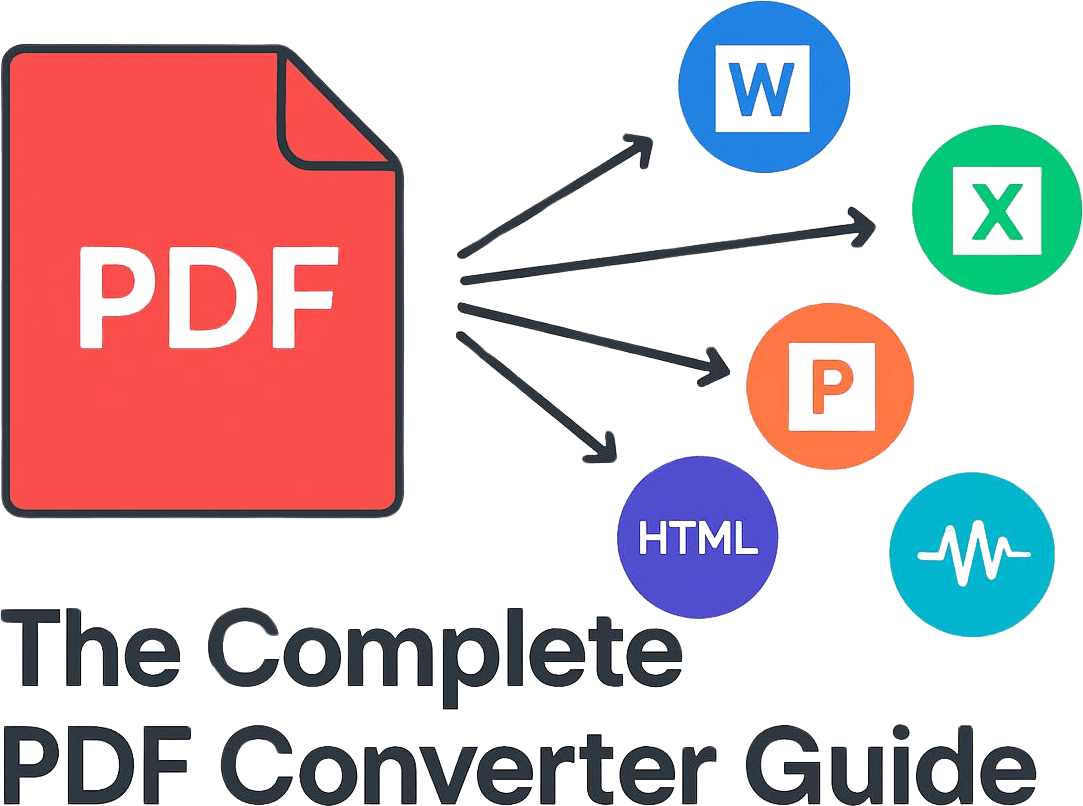
A PDF converter is a tool that transforms a PDF file into an editable format — such as Word, Excel, HTML, or plain text — or converts other file types into PDF. The right conversion method depends entirely on what you are starting with and what you need to do with the document next. This guide covers every conversion type, how they work, and exactly what to do when things go wrong.
PDF files are everywhere — contracts, reports, invoices, research papers, slide decks. They look perfect on every screen and every printer. But the moment you need to edit, extract data from, or republish that content, a static PDF becomes an obstacle. That is where a free online PDF converter becomes essential.
Whether you are converting a PDF to Word for editing, turning a spreadsheet into a shareable PDF, or listening to a document as audio on your commute, Transfonic's free PDF converter handles every direction and every format — no software to install, no account required. If you are new to document conversion in general, our complete guide to document conversion is a good place to start.
What is a PDF Converter — and How Does it Actually Work?
A PDF — short for Portable Document Format — is defined by the international standard ISO 32000-2:2020, maintained by the International Organization for Standardization. Unlike Word or Excel files, a PDF does not store a document as editable content. It stores a precise set of instructions for rendering every element — text, images, lines, fonts — at an exact position on the page. This is what makes PDFs look identical on every device.
A PDF converter works by parsing those rendering instructions and translating them into the structure of a different format. For a PDF-to-Word conversion, the converter identifies text blocks, reads their font, size, and position, and reconstructs them as editable Word paragraphs. For a PDF-to-Excel conversion, it detects grid structures and maps them to spreadsheet cells.
The PDF Association describes this process as "interpreting the content streams of a PDF" — meaning the converter reads the underlying code, not just what you see on screen.
This is also why conversions are never 100% perfect. PDF is a presentation format. Word and Excel are editing formats. Translating between the two is like converting a printed photograph back into a raw camera file — you get close, but some information is always interpreted rather than restored exactly.
Two types of PDF exist, and they behave very differently in conversion:
Digital PDFs — created directly from a Word, Excel, or PowerPoint file. Text is stored as actual text. These convert with high accuracy.
Scanned PDFs — created by scanning a physical document. The content is stored as an image. Converting these requires OCR (Optical Character Recognition) to read the text from the image before conversion.
The 6 Most Common PDF Conversion Types (and When to Use Each)
Transfonic supports all document conversion tools across every major format. The table below covers the six conversions people need most often — what each one is best for, and where quality issues are most likely to appear.
Conversion | Best use case | Most common quality issue | Transfonic tool |
PDF → Word (DOCX) | Editing a contract, report, or article | Font substitution if fonts are not embedded in the PDF | |
PDF → Excel (XLSX) | Extracting invoice data or financial tables | Merged cells in the PDF misalign spreadsheet columns | PDF to Excel tool |
PDF → PowerPoint (PPTX) | Repurposing a report as a presentation | Slide layouts may need manual adjustment | PDF to PPT tool |
PDF → HTML | Publishing document content on a website | Multi-column layouts collapse; CSS needs manual cleanup | |
PDF → TXT | Extracting raw text for analysis or indexing | Formatting, headers, and tables are stripped entirely | |
PDF → EPUB | Converting a document into an ebook for reading on Kindle or tablet | Page breaks and footnotes may not map correctly |
Beyond these six, Transfonic also supports conversion to Markdown for developer workflows and to MP3 audio for listening to documents on the go — formats that most PDF converters do not offer at all.
Converting TO PDF: Which File Types Work Best
Converting other formats into PDF is the most common document task in any office or academic environment. PDF is the right output format when you need to share a document that must look identical for everyone who receives it, archive content in a format that cannot be casually edited, or prepare files for printing or legal submission.
The Word to PDF tool (DOCX to PDF) produces the most accurate results of any conversion type because Word and PDF share similar text and layout concepts. Fonts, headings, tables, and images transfer cleanly in almost all cases.
The Excel to PDF converter requires one extra step of attention — page breaks. Excel spreadsheets have no built-in concept of a page, so wide tables often get cut across pages in the PDF output. Before converting, set your print area in Excel and switch to Page Layout view to preview how the grid will paginate.
The PowerPoint to PDF converter is straightforward — each slide maps to one PDF page. The main consideration is whether you want speaker notes included or excluded in the final PDF.
For HTML-to-PDF conversion, the W3C CSS specification defines how web content should be adapted for paged media — but most web pages are designed for infinite scroll, not fixed pages. Expect some manual adjustment for complex web layouts.
How to Convert a PDF Online in 3 Steps
Converting a PDF with Transfonic takes under 30 seconds for most files.
Step 1 — Upload your file. Go to Transfonic's free PDF converter and drag and drop your PDF into the upload area, or click to browse your device. Files up to 10MB are supported. Your file is transferred via 256-bit SSL encryption — the same standard used by online banking.
Step 2 — Choose your output format. Select the format you need from the format picker. Options include Word (DOCX), Excel (XLSX), PowerPoint (PPTX), HTML, plain text (TXT), EPUB, Markdown (MD), and MP3 audio.
Step 3 — Download your converted file. Click Convert. The conversion typically completes in 5–15 seconds. Download your file instantly. Transfonic deletes all uploaded files immediately after conversion — nothing is stored on the server.
No signup. No watermarks. No daily conversion limits.
Why PDF Conversions Go Wrong and How to Fix Them
This is what every other guide skips. Understanding these failure modes will save you hours of frustration.
Problem 1 — The output is an image, not editable text. Cause: The PDF is scanned. It contains an image of text, not actual text characters. Fix: You need a converter with OCR (Optical Character Recognition). OCR analyses the image and extracts the text before conversion. Without it, your Word file will contain an uneditable image regardless of which converter you use.
Problem 2 — Fonts look wrong or characters are missing. Cause: The PDF was created with fonts that are not embedded in the file. When the converter cannot find the original font, it substitutes a similar one. Some characters — especially special symbols, accented letters, or non-Latin scripts — may not survive this substitution. Fix: If you created the original document, re-export the PDF with font embedding enabled. In Word, this is under Save As → Options → Embed fonts in the file. For PDFs you received from others, font substitution is largely unavoidable — plan for a manual cleanup pass in Word afterwards.
Problem 3 — Tables misalign or columns merge incorrectly. Cause: PDF tables are drawn as visual boxes, not as structured data. The converter has to infer which boxes belong to which row and column. Merged cells, spanning headers, and irregular column widths frequently confuse this inference. Fix: After conversion to Excel, use the "Unmerge Cells" function and manually realign columns. For complex financial tables, converting to Word first and then copying the table into Excel sometimes produces cleaner output.
Problem 4 — PDF formatting issues after conversion — multi-column layouts collapse. Cause: PDF stores multi-column content as text blocks positioned side by side on the page. Word and HTML use flowing layouts where text wraps automatically. The converter reads the text blocks left to right and stacks them vertically, which destroys the column structure. Fix: For two-column documents, convert to Word and manually set up a two-column layout (Layout → Columns → Two). For HTML output, the column structure needs to be rebuilt with CSS.
Problem 5 — Password-protected PDF fails to convert. Cause: Encrypted PDFs cannot be read by any converter without the password. Even "owner password" restricted PDFs (which restrict printing or editing but not opening) block conversion on most tools. Fix: If you know the password, remove the restriction first using a PDF editor, then convert. If you do not know the password, conversion is not possible — this is by design to protect the document owner's rights.
Problem 6 — Large PDF file fails to upload. Cause: Most free online converters impose file size limits (Transfonic's limit is 10MB). Fix: Compress the PDF first using a PDF compression tool, then convert. Alternatively, split the PDF into smaller sections, convert each section, and recombine the output files.
PDF Converter vs PDF Editor: Which Do You Actually Need?
These two terms are frequently confused, and choosing the wrong tool wastes time.
A PDF converter changes the file format — it turns a PDF into a Word document, or turns a Word document into a PDF. You use a converter when you need to edit content that is locked inside a PDF, or when you need to produce a PDF from another format.
A PDF editor keeps the file as a PDF but lets you make changes inside it — adding text, annotating, highlighting, filling in form fields, or redacting content. You use an editor when you want to make minor changes without changing the format.
Task | Use a converter | Use an editor |
Edit the body text of a PDF report | Convert to Word first | — |
Add your signature to a PDF contract | — | PDF editor |
Extract invoice data into Excel | Convert to Excel | — |
Highlight key sections for review | — | PDF editor |
Publish a Word document as a PDF | Convert to PDF | — |
Fill in a PDF form | — | PDF editor |
If you need to rewrite content, restructure a document, or extract data, convert. If you need to annotate, sign, or make small corrections — edit.
Start Converting PDFs — No Signup Needed
A PDF converter is one of the most frequently needed tools in any document workflow — and it should be free, fast, and private. Transfonic converts PDFs to every major format in seconds, with 256-bit SSL encryption, no watermarks, and no data retention. Upload your file, choose your format, and download the result. That is all there is to it.
Related posts