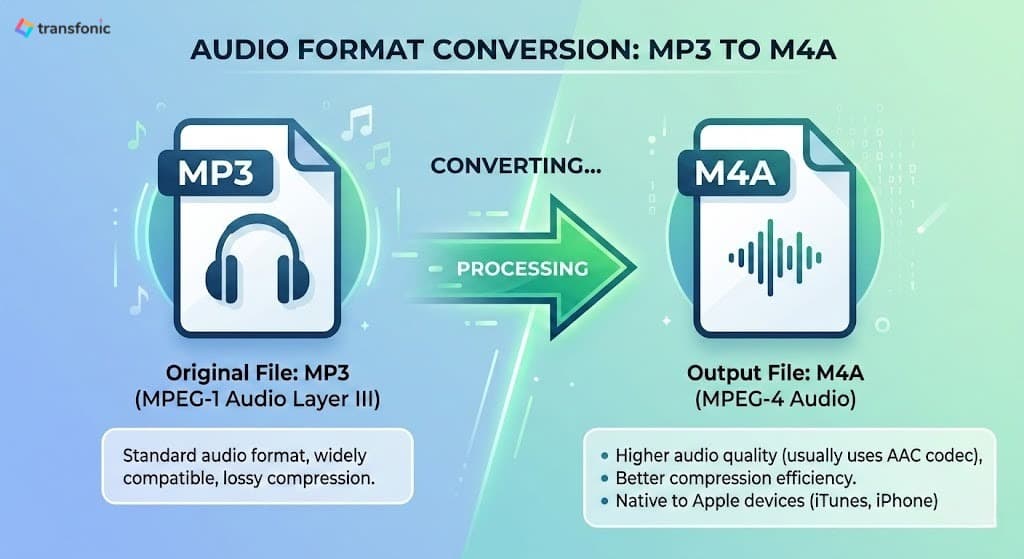
MP3 has been the default audio format for decades. It works everywhere, it is universally recognized, and almost every device on the planet can play it. But universal compatibility comes at a cost — MP3 is a lossy format with limitations that become noticeable the moment you start working with audio professionally or on Apple devices.
M4A delivers better audio quality at the same or smaller file size and it is the native format for iTunes, iPhone, iPad, and every Apple platform. If you are managing a music library, producing a podcast, or preparing audio for Apple devices, converting MP3 to M4A is a practical upgrade worth making. Transfonic's free MP3 to M4A converter makes it possible in seconds — no software, no account required.
MP3 and M4A: What Each Format Actually Is
Convert MP3 to M4A. To grasp why the conversion is significant, it pays to realize how these two formats differ under the hood. Both are compressed audio formats, but they use different compression technologies and were created for different use cases.
What Is MP3?
That is an MP3, which stands for MPEG-1 Audio Layer III; it was invented by the German Fraunhofer Institute in the early 1990s, but a standard was not formalized until 1993. It emerged as the de facto standard of digital audio during the late 1990s and 2000s due to its ability to substantially reduce the data size of audio and the cost associated with storage and bandwidth in that period.
MP3 is supported by virtually every device, media player, platform, and operating system on the planet. That near-universal compatibility is its defining strength.
What Is M4A?
M4A, based on the ISO base media file format, was developed by Apple Inc. M4A file. The M4A extension is explicitly for audio-only MPEG-4 files; MP4 can be both audio and video.
M4A is the native format supported by the iTunes Store, Apple Music, iPhone, iPad, iPod, and the entire Apple ecosystem. It's also supported by the majority of modern media players, including VLC, Windows Media Player and top streaming services.
MP3 vs M4A: Key Differences
Audio codec: MP3 uses the MP3 codec; M4A uses AAC or ALAC
Sound quality: M4A with AAC delivers noticeably better quality at the same bitrate as MP3
File size: M4A files are typically smaller than MP3s at equivalent quality
Apple compatibility: M4A is the native Apple audio format; MP3 requires additional processing
Lossless option: MP3 has no lossless variant; M4A with ALAC is fully lossless
Universal support: MP3 is supported on virtually every device; M4A has broader modern support than older MP3
Metadata: M4A handles album art, lyrics, and track data more cleanly than MP3
Why Convert MP3 to M4A? Real Reasons, Not Just Theory
Audio format decisions are practical. Here are the situations where converting MP3 to M4A makes a genuine difference.
You Are Building or Managing an Apple Music Library
M4A is ideally suited to iTunes and Apple Music. The handling of MP3 metadata, album art and playback can be hit-and-miss when importing them into an Apple Music library. M4A files integrate entirely cleanly and natively as far as album art, lyrics, ratings and smart playlists. M4A is the safest option for those with large music libraries to manage on Apple devices.
You Want Better Audio Quality at a Smaller File Size
The M4A codec also utilizes the AAC encoding method, which is a newer technology than the MP3 codec found in most MP3 files, meaning M4A files will unlock a higher quality sound at a lower bitrate. The M4A encoded with AAC at 128 kbps sounds cleaner bit for bit, and more nuanced than the same bitrate encodes in MP3.
You Are Distributing Audio Through Apple Platforms
M4A — this is the default audio format of the iTunes Store and Apple Podcasts. M4A files are required by podcast producers, musicians and audiobook creators who are distributing through Apple channels. This prevents platform-sided re-encodings that can add further unnecessary loss in quality; note that platform aside, if you submit MP3 masters, converting them yourself to M4A beforehand is always recommended for better compatibility.
You Are Working with iPhone or iPad Audio
M4A is natively handled by iOS at the system level. MP3 works great for playback on iPhone and iPad devices, while M4A has deeper system integration for features like Siri, AirPlay, and CarPlay. M4A is generally the best option for those whose main listening device is an iPhone.
You Are Archiving Audio for Long-Term Storage
Provided that long-term archival is the objective, transcoding from MP3 to M4A with ALAC (Apple Lossless) gives you a completely lossless version of your music. It covers every piece of the original audio, even compressed, but with a perfectly reversible format. Or, when archiving music, recordings, or podcast masters, lossless M4A is far more future-proof than lossy MP3.
How to Convert MP3 to M4A Online — Step by Step
The fastest way to convert MP3 to M4A without installing software is Transfonic's browser-based MP3 to M4A converter. It is free, requires no account, and processes files in seconds.
Step 1: Open the Converter
Go to mp3-to-m4a. No login or registration is needed. The tool opens immediately in your browser on any device.
Step 2: Upload Your MP3 File
Drag and drop your MP3 file into the upload area, or click to browse your device. Transfonic supports batch uploads, allowing you to convert multiple MP3 files to M4A in a single session — a significant time-saver when converting a full music library or podcast archive.
Step 3: Select M4A as the Output Format
M4A should be pre-selected as the target format on the dedicated conversion page. Confirm your selection before proceeding.
Step 4: Convert and Download
Click Convert. Most files are processed within seconds. Download your M4A file directly to your device. Transfonic automatically deletes all uploaded files after processing — your audio data is never stored long-term on any server.
Will Converting MP3 to M4A Improve Audio Quality?
This is one of the most important questions about audio format conversion, and it requires an honest, direct answer.
Converting an existing MP3 file to M4A will not restore audio quality that was already lost when the MP3 was originally encoded. The lossy compression applied during MP3 encoding permanently discards certain audio data. That data cannot be recovered by changing the container format or re-encoding to AAC.
For genuinely better audio quality, always start with the highest-quality source available — ideally a lossless FLAC or WAV file — and encode to M4A from there. Converting MP3 to M4A will not produce 256 kbps quality. It will produce a clean, Apple-compatible M4A file at the quality level of the MP3 source.
Related Transfonic Audio Tools That Work Alongside Conversion
MP3 to M4A conversion is often just one step in a broader audio workflow. Transfonic provides a complete suite of audio tools that integrate naturally with format conversion.
Audio Conversion — All Formats
Need to convert to formats other than M4A? Audio Conversion supports all major audio formats, including WAV, OGG, FLAC, AAC, and more. Convert between any audio formats directly in your browser with the same free, no-signup experience.
Audio Compressor
M4A files, while efficient, can still be large for mobile storage or web distribution. Audio Compressor reduces audio file sizes without audible quality loss — ideal for podcast distribution, mobile libraries, or web-hosted audio content.
Audio Noise Reduction
If your MP3 source contains background noise from recording environments, equipment hum, or ambient sound, clean it up before or after conversion. Audio Noise Reduction removes unwanted background noise while preserving the clarity of speech and music, producing a cleaner M4A output.
Audio to Text
For spoken-word content — interviews, podcasts, lectures, or voice memos — Audio to Text tool transcribes audio files into accurate text using advanced speech recognition. Works with both MP3 and M4A files.
Practical Tips for Better MP3 to M4A Conversion Results
Start With the Highest Bitrate MP3 Available
When you have several versions of an MP3 file at different bitrates, make sure that you use the highest bitrate version as your source for conversion. A 320 kbps M4A will essentially sound much better than a 128 kbps MP3 of the same recording. The quality of the source is the upper limit — conversion can never go beyond it.
Use a Lossless Source When Possible
Convert from lossless to M4A instead (if your original recording is in a loss format, record it as a WAV or FLAC to SET THINGS UP FOR EM UPS). Every step of the lossy encoding we apply removes audio data. WAV to M4A (AAC) is lossy (i.e., compression) done once, so it is cleaner than WAV to MP3 to M4A.
Match the Target Bitrate to Your Use Case
You do not need to encode every M4A file at the highest bitrate possible. When it comes to voice recordings, podcasts and spoken word content, 96 to 128 kbps AAC is more than enough while saving on file size. For music, 256 kbps AAC is generally regarded as transparent — indistinguishable from lossless to most listeners. Allocate a bitrate that matches the content requirement.
Verify Metadata After Conversion
The audio metadata — track title, artist name, album, artwork — can also get garbled sometimes during format conversion. Ensure all metadata is copied properly after conversion to M4A, especially if the files are going into an iTunes or Apple Music library, where metadata is everything to organize and display.
Test Playback on Your Target Device
Perform a single-file conversion test, and play it back on the device or platform that will be ultimately used, before converting a whole bunch of them. This is highly recommended before committing yourself to a full album conversion; ensure audio quality appears as it does, that metadata appears as desired and so does the album art.
Common Mistakes to Avoid When Converting MP3 to M4A
Expecting Quality Recovery From a Low-Bitrate MP3
If an MP3 at 96 kbps is converted to M4A, it is still 96 kbps of audio data. The transformation does not restore lost information. If the original MP3 sounds weak or low-quality, the M4A result will be like that too. Always buy in as good quality as you can.
Converting MP3 to M4A and Then Back to MP3
When audio is transcoded between lossy formats, it gets a new round of lossy compression on top of the already-existing lossy compression. Two generations of quality loss (MP3 to M4A and M4A back to MP3). Avoid format round-trips. Choose the final format and go straight to that format from the best source you can work from.
Ignoring File Size After Conversion
A converted M4A file with AAC encoding is typically smaller than an equivalent-quality MP3 file. Though when you are converting into M4A, you might go for a higher target bitrate so that M4A is bigger than expected. Realistically, for most use cases, the practical limit is 256 kbps AAC. However, encoding beyond this is just bloat without any meaningful advantage in quality.
Using Untrusted Online Converters
Audio — Music, podcasts, and other recordings may contain private or commercially sensitive information. Others hold onto the files you upload, compress the quality or ship adware with your downloads. Always go for a converter with a clear privacy policy. It provides 256-bit SSL encryption, and subsequently deletes all uploaded files after processing transfonic.
Not Checking Apple Device Compatibility
The majority of M4A files can natively be played on Apple devices. Not all third-party apps and old devices support M4A with ALAC (lossless). Whenever total compatibility over the Apple and non-Apple platforms is required, M4A with AAC is the safest bet as compared to ALAC.
Conclusion: Make the Switch to M4A the Right Way
MP3 built the modern digital audio landscape. But the format is three decades old, and better options now exist for anyone working with audio on Apple platforms, distributing through Apple channels, or simply wanting better audio quality at smaller file sizes.
Convert your first MP3 to M4A now at transfonic — free, instant, and entirely browser-based. And if you need to compress, clean up noise, or transcribe your audio,Transfonic's full audio toolkit covers every step of your workflow in one place